Add/Update Quiz Questions
Applies to: Lite & Pro
Add/Update Quiz Questions
For: Teachers & Administrators
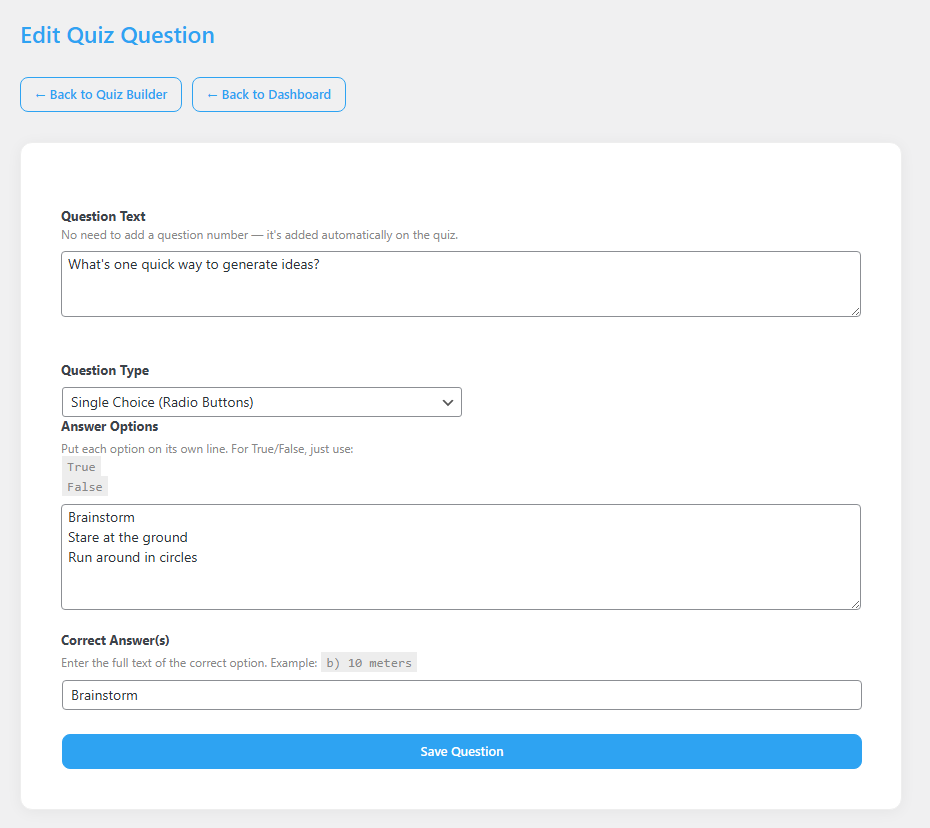
Write, change, or fix the individual questions inside a quiz module. This article covers the Edit Quiz Question screen — the page where you set the question text, pick the format, list the answers, and mark the correct one.
Each quiz is made of questions you build one at a time. This screen lets you set the question text, pick the question type, list the answer choices, and mark the correct answer.
Before you start
- You are logged in as a Teacher or Administrator.
- The quiz module exists and you are in its Quiz Builder (click Edit on the quiz module, then edit or add a question).
Step-by-step
- Open the question. In the Quiz Questions area of the quiz module, start a new question or click to edit an existing one to reach the Edit Quiz Question screen.
- Write the question. In the Question Text box, type your question. Do not add a number — it is added automatically on the quiz.
- Pick the format. In the Question Type dropdown, choose the kind of question. There are four types — single choice (radio button), multiple choice (checkbox), true/false, and fill in the blank. For True/False, just list “True” and “False” as the options.
- List the answers. In the Answer Options box, type each choice on its own line.
- Mark the right answer. In the Correct Answer(s) field, type the full text of the correct option exactly as it appears in the options.
- Save it. Click Save Question. The question is added to or updated in the quiz.
Tips & things to know
- The Correct Answer(s) text must match an option exactly, including spelling and capitalization.
- For a True/False question, the Answer Options are simply “True” and “False”.
- You can return to this screen any time to fix a typo or change the correct answer.
- For a fill in the blank question, the student’s answer must match the correct answer exactly — including spelling, spacing, and capitalization.
- A grade override is available on the admin dashboard for Administrators and Teachers. If a student’s answer is essentially correct but not an exact match, you can adjust the grade in the interest of fairness. Every grade alteration is recorded in a consistent audit trail that Administrators can review on the Manage Students page, per course.
Pro Feature
Quiz questions work the same in Voltora Academy Pro. No differences in how questions are written or graded between Lite and Pro.