Add/Update a Quiz (Module)
Applies to: Lite & Pro
Add/Update a Quiz (Module)
For: Teachers & Administrators
Add an interactive quiz to a course so students can test what they learned. This article covers the quiz module editor — the page where you name a quiz and open the Quiz Builder to add questions.
A quiz module asks students questions and checks their answers. On this screen you name the quiz, set its type to Interactive Quiz, and open the Quiz Builder to add questions.
Before you start
- You are logged in as a Teacher or Administrator.
- The course exists and you are on its Curriculum section, or you have opened the module directly.
- You have your questions and the correct answers ready.
Step-by-step
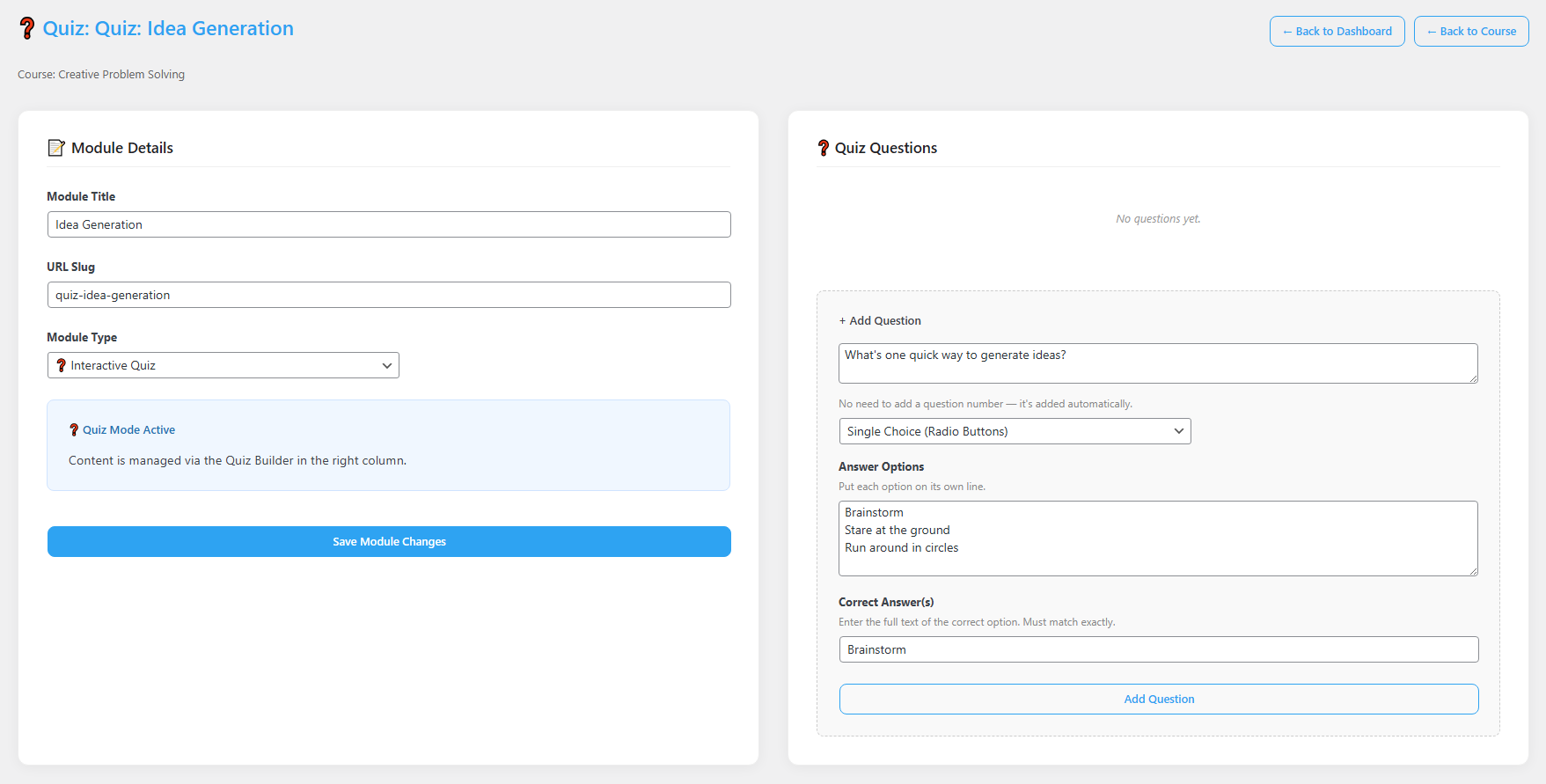
- Open the quiz. In the course’s Curriculum section, click + Add, choose Quiz, then click + Add to open the module — or click Edit next to an existing quiz module.
- Name it. In the Module Details section, type the quiz name in the Module Title field. The URL Slug fills in automatically; keep it unique if you change it.
- Confirm the type. In the Module Type dropdown, make sure it is set to “Interactive Quiz.” A “Quiz Mode Active” notice confirms the content is managed in the Quiz Builder.
- Save the module shell. Click Save Module Changes so the quiz is created.
- Add a question. In the Quiz Questions area, type the question in the question box, then choose the Question Type. There are four types — single choice (radio button), multiple choice (checkbox), true/false, and fill in the blank — and the builder shows helpful hints for the fields you need based on the type you pick. List each Answer Option on its own line, and type the exact Correct Answer(s) text.
- Save the question. Click Add Question. Repeat for each question you want.
What students see
When a student takes the published quiz, they see the questions with multiple-choice options and navigation to move through and submit their answers.

Tips & things to know
- The Correct Answer(s) must match the option text exactly, or the system cannot grade it.
- Put each answer option on its own line in the Answer Options box.
- You do not need to number questions — that happens automatically.
- The Question Type offers four formats — single choice (radio button), multiple choice (checkbox), true/false, and fill in the blank — and the screen adapts its hints to the type you select.
Pro Feature
Quizzes work the same in Voltora Academy Pro. Pro adds no separate quiz engine; question types and grading behave identically in both versions.