Edit a Course
Applies to: Lite & Pro
Edit a Course
For: Teachers & Administrators
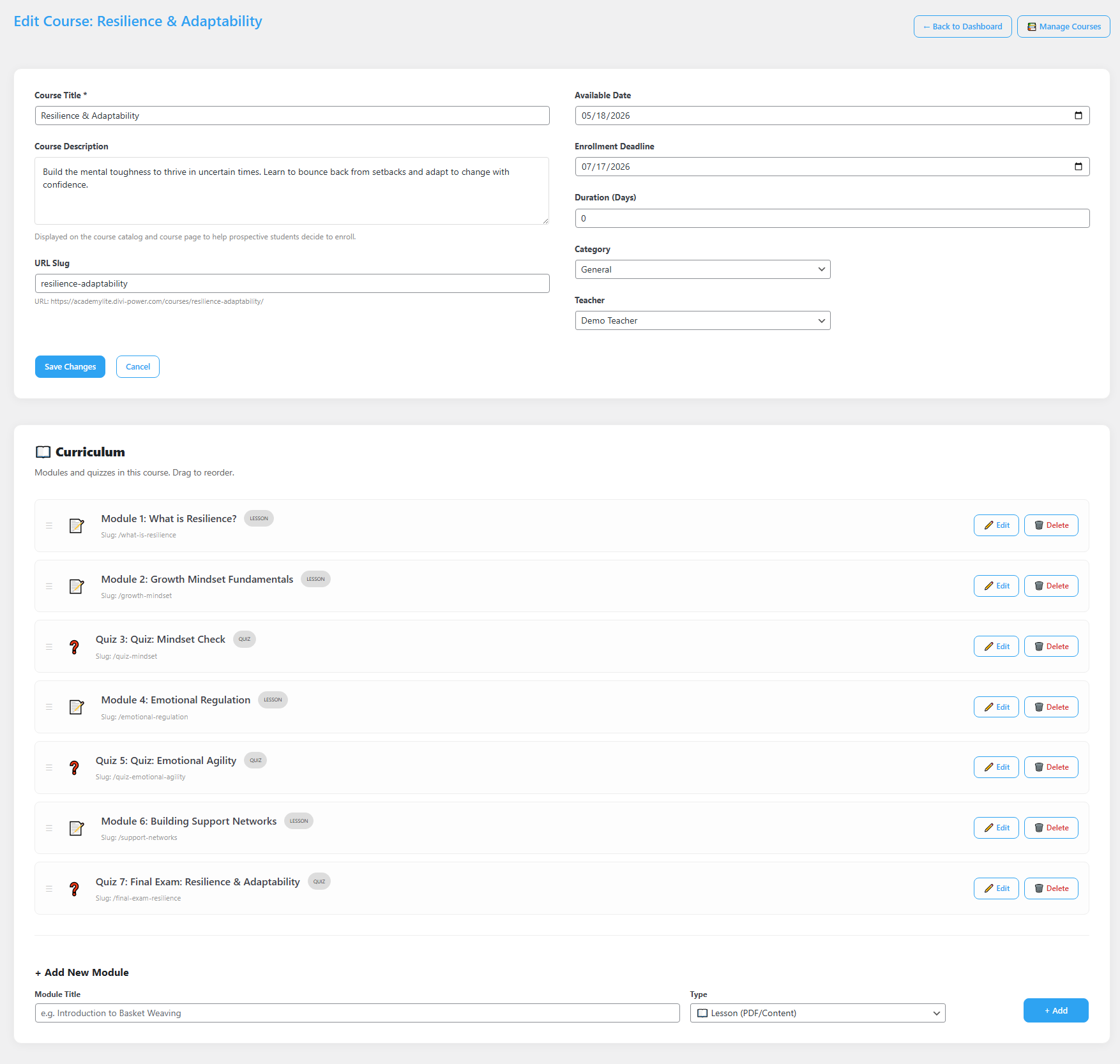
Change the name, description, schedule, or lessons of a course you have already created. This article covers the Edit Course screen — the page where you adjust a course’s details and manage the lessons and quizzes inside it.
The Edit Course screen is where you update a course’s title, description, dates, category, teacher, and web address, and where you manage its lessons and quizzes. After you click Save Changes on the details box, you stay on the same page and keep building the curriculum right there.
Before you start
- You are logged in as a Teacher or Administrator.
- The course you want to change already exists. See Manage Courses.
Step-by-step
- Open the course. From the WordPress dashboard, go to Voltora Academy → Manage Courses, then click Edit next to the course.
- Change the basics on the left. Edit the Course Title and the Course Description as needed.
- Set or change the web address. In the URL Slug field you can leave it blank and Voltora Academy will keep the automatic address, or type a new one. The URL preview below the field shows the full address. The slug must be unique — no two courses can share the same URL slug.
- Update the schedule and assignment on the right. Adjust any of these:
- Available Date — the day the course opens to students.
- Enrollment Deadline — the last day a student can enroll.
- Duration (Days) — how long the course runs. Leave it at 0 if there is no set end date.
- Category — the subject area the course belongs to.
- Teacher — the instructor assigned to teach it.
- Save the details. Click Save Changes at the bottom of the details box. You stay on the same page.
- Manage the lessons and quizzes. In the Curriculum section, drag any module up or down to reorder it. Click Edit next to a module to open and change it, or Delete to remove it.
- Add more content. In the + Add New Module area, type a Module Title, choose the Type (Lesson or Quiz), and click + Add. Each module is saved the moment you add it — you do not click Save Changes again.
Tips & things to know
- Save Changes applies only to the details box at the top. Once you are working in the Curriculum section, modules save as soon as you add or edit them — no extra save needed.
- The URL Slug must be unique. If you change it, make sure no other course uses the same slug, or the address will not work correctly.
- Reordering is drag-and-drop — the on-screen note says “Modules and quizzes in this course. Drag to reorder.”
Pro Feature
In Voltora Academy Pro, a course can be tied to a WooCommerce product so you can sell it. The free Lite version offers unlimited free courses only. See Pro: Create a WooCommerce Course Product.