Take a Lesson and Mark It Complete
Applies to: Lite & Pro
Take a Lesson and Mark It Complete
For: Students
Open a lesson from your course hub, read it, click Mark Complete, and move to the next lesson — your progress saves automatically.
This shows a student how to enter an enrolled course, open a lesson from the curriculum, read the content, and mark it done. Each lesson has Previous, Mark Complete, and Next buttons so you move through the course in the order your teacher arranged it. Quizzes are taken the same way — answer the questions and click Submit Answers. Your progress (the percentage and checkmarks) updates on its own.
Before you start
- You are logged in as a student.
- You have enrolled in the course (see Enroll in and Access a Course).
- You are on the course hub (open the course from your Student Portal / My Account “My Courses” list).
Step-by-step
- Open the course. In your Student Portal / My Account, click the course name or its Resume → button to open the course hub.
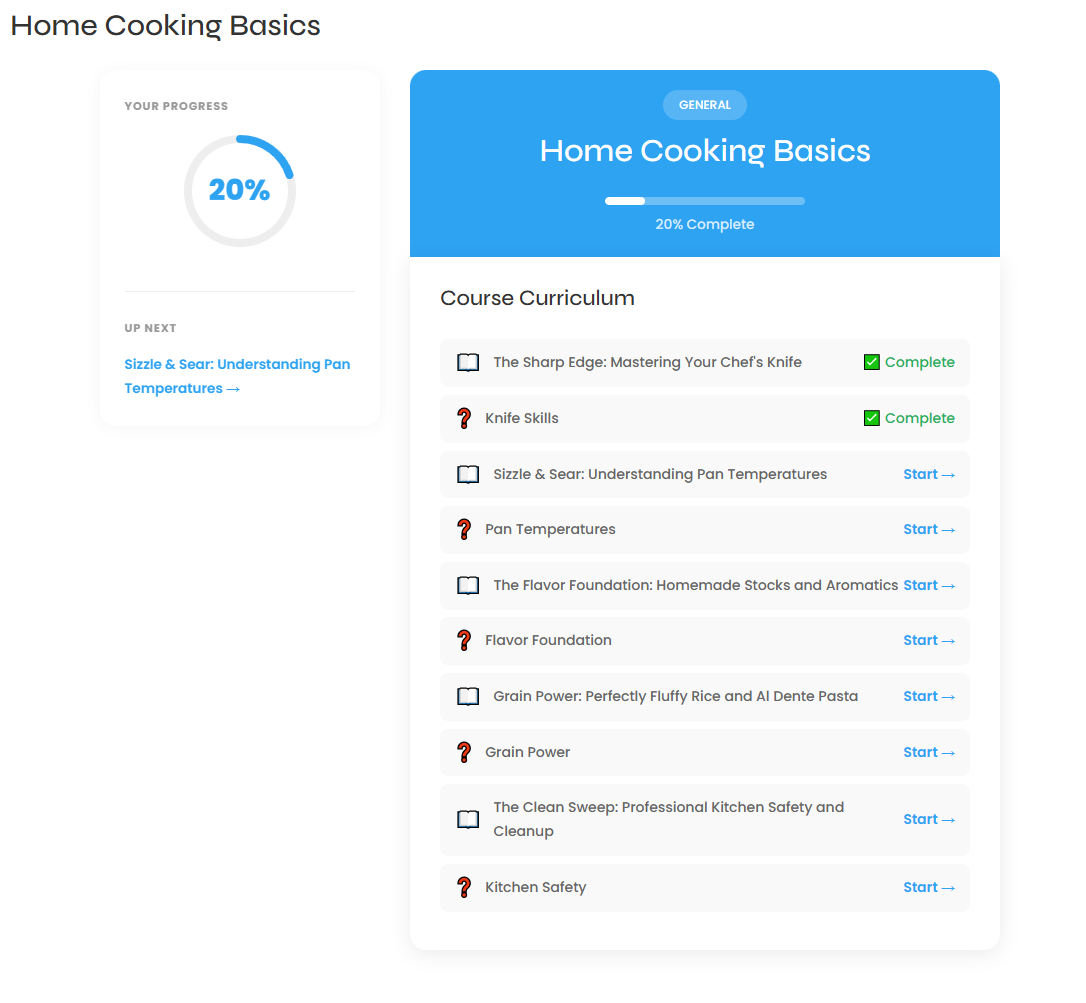
- Open a lesson. On the hub, find the lesson you want. Completed lessons show a “Complete” mark; unfinished ones show a Start → link. Click Start → on the lesson (for example, “Sizzle & Sear: Understanding Pan Temperatures →”).
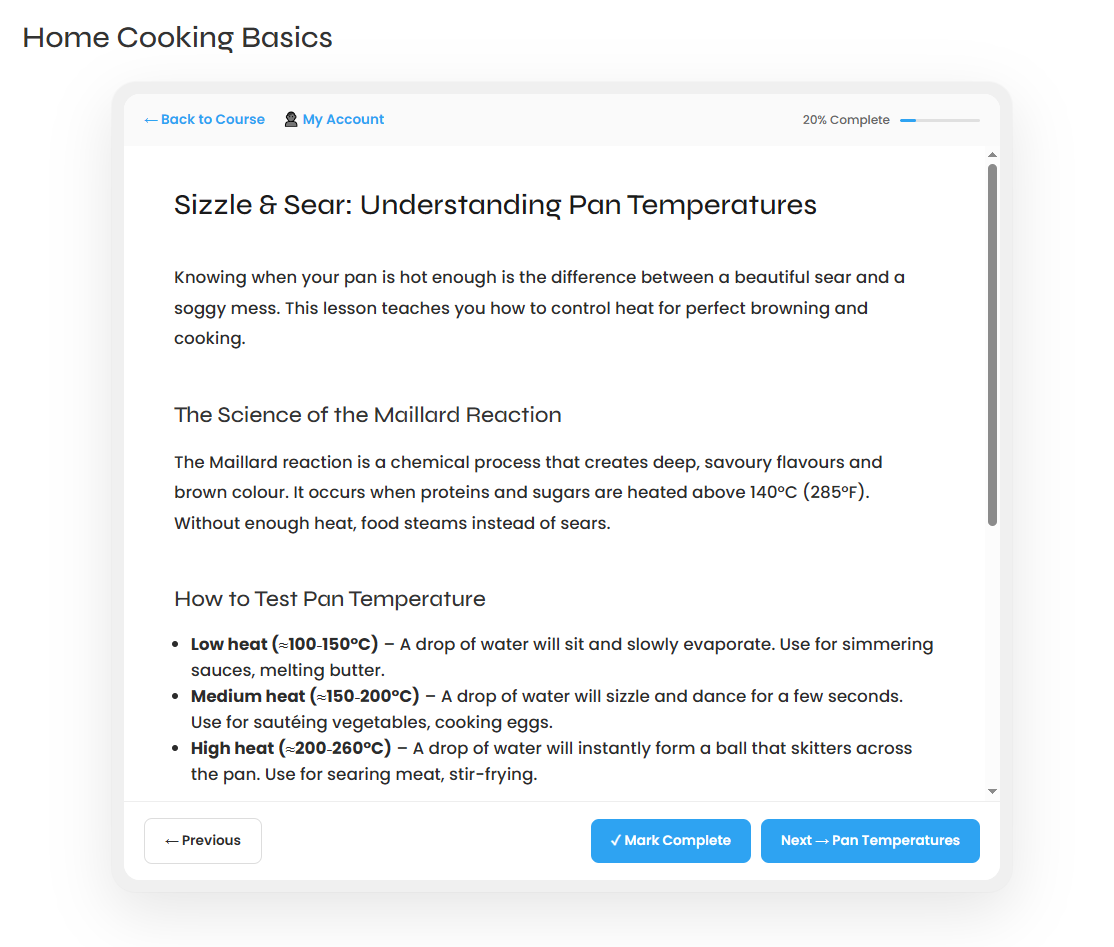
- Read the lesson. The lesson page shows the title, the content, a “20% Complete” progress bar at the top, and a “← Back to Course” link.
- Mark it done. At the bottom, click ✓ Mark Complete. Your progress saves automatically and the lesson is marked complete.
- Go to the next lesson. Click Next → to go to the next lesson or quiz. Use “← Previous” to go back if needed.
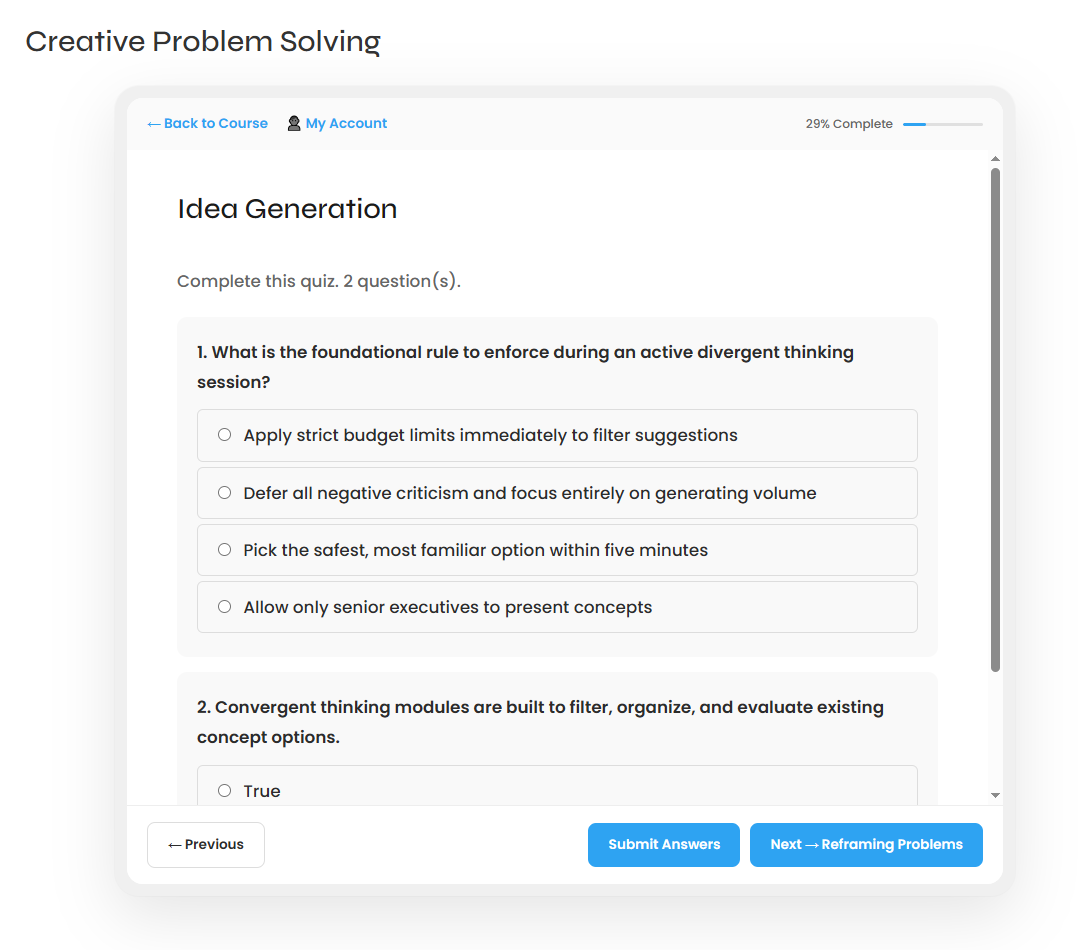
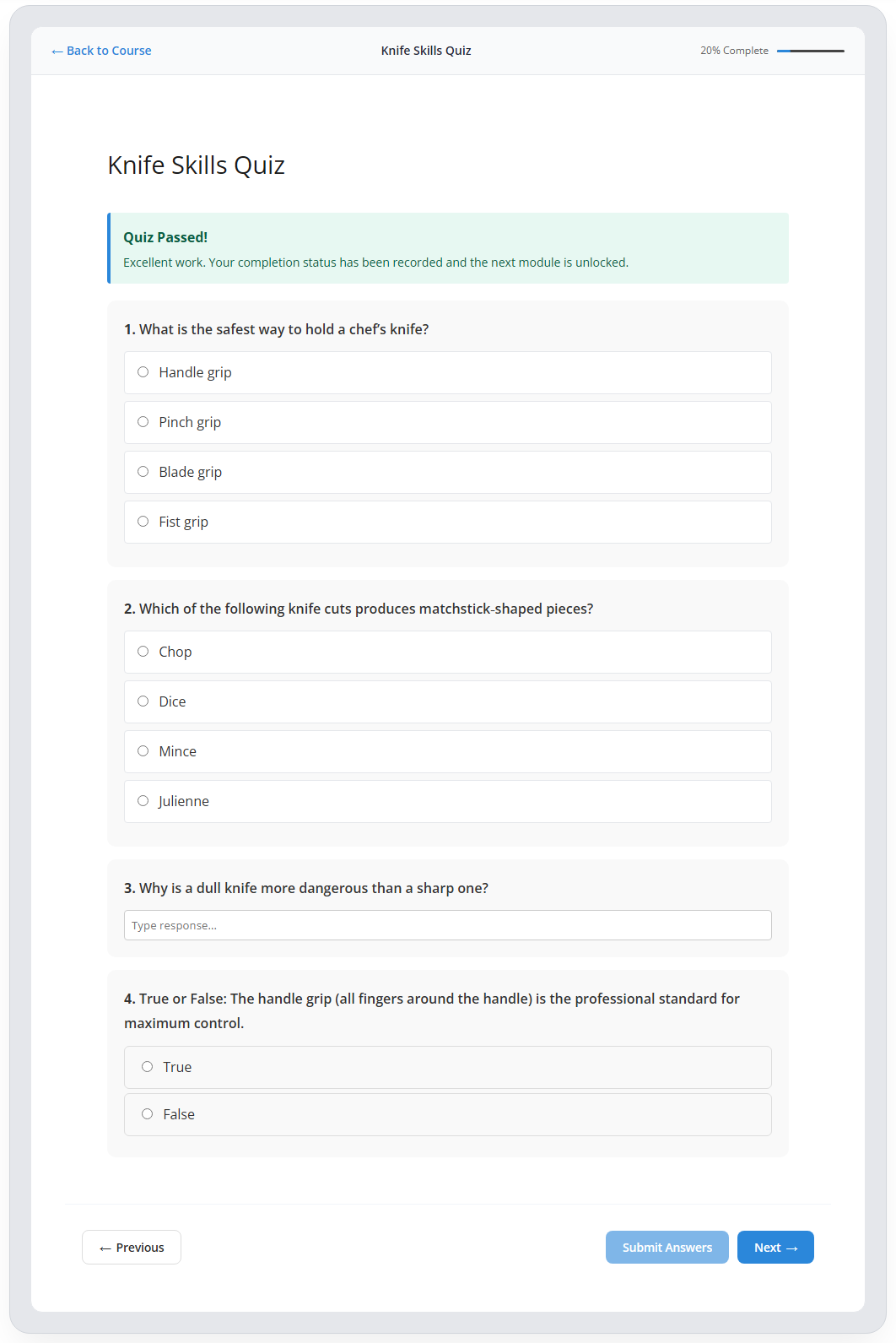
- Take a quiz. When a curriculum item is a quiz, click its Start → link. Read the heading and “Complete this quiz. N question(s).” Answer each question — choose a radio option, or type in a “Type response...” box — then click Submit Answers. Your quiz or exam will be automatically graded and you'll be notified at the top of the page immediately, the next module unlocks. Click Next → at the bottom of the tablet viewer to continue, or “← Back to Course” at the top to return to the course hub.
Tips & things to know
- You do not click a separate save button — marking complete and submitting answers records your progress on its own.
- The checkmark on the hub and the “X% Complete” bar both reflect your real progress.
- Answer every question before clicking Submit Answers.
Pro Feature
Lesson and quiz taking is identical in Pro. In Voltora Academy Pro, students get extra study tools — a course notes/journal and the ability to bookmark lessons for quick return. These are not included in the free Lite version.