Student: View Your Course Progress
Applies to: Lite & Pro
Student: View Your Course Progress
Voltora Academy tracks how far you have gotten in every course you are enrolled in, from the first lesson to the final quiz.
This article explains where to find your progress, what the numbers and checkmarks mean, and — for Pro students — the extra gamification stats (experience level, completion progress, and attendance streak) shown on your account.
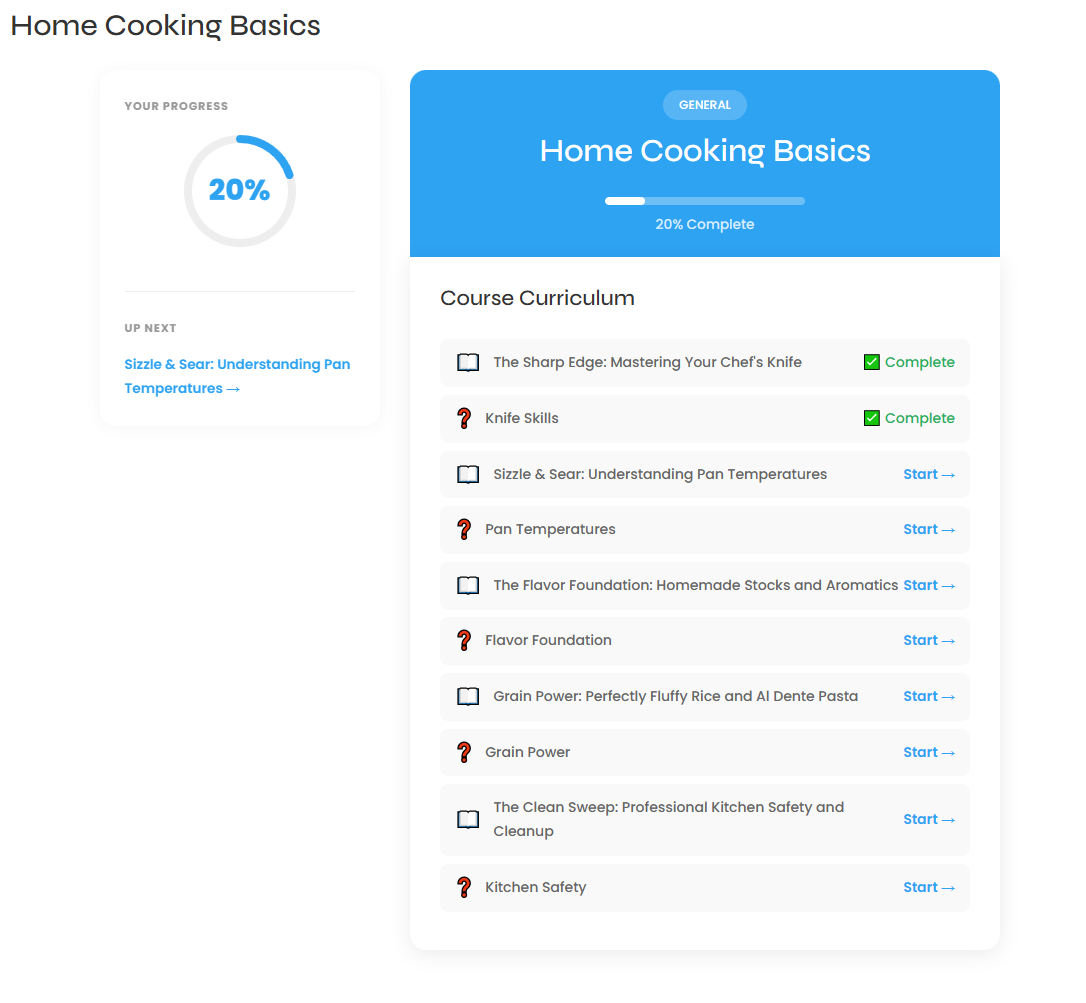
Steps — view progress inside a course
- On the course hub, look at the Your Progress ring in the left sidebar and the % Complete label in the green course banner. An enrolled but unstarted course reads 0%.
- Below the ring, the Up Next panel names your next unfinished lesson (for example, Getting Started with Bees) with a right-arrow.
- In the Course Curriculum list, each item shows a checkbox on the left and a ✓ Completed status on the right once finished.
- Click Start → (or Resume →) on the next lesson to keep going.

Steps — on your Student Portal account page
- Open your student portal on your account page.
- Your course progress is shown on a horizontal progress bar for each course.
- To see quickly which modules you've completed, click the course row and the curriculum expands below. All completed modules have a green checkbox; uncompleted modules have an empty checkbox.

Steps — view account-wide progress (Pro)
- Open your student portal on your account page. A welcome line greets you (for example, Welcome back, Kelly!).
- Below the greeting, a stats bar shows three Pro gamification metrics:
- Experience Level (for example, Novice or Intermediate)
- Overall Completion Progress (for example, 59%)
- Active Attendance Streak (for example, 0 day streak)
- Your course progress is shown on a horizontal progress bar for each course.
- The My Ratings section shows the reviews you have submitted (or No reviews yet).
Tips & things to know
- Progress saves automatically — you do not click a separate save button when you mark a lesson complete or submit a quiz.
- The green checkmark on the hub and the % Complete bar both reflect your real progress.
- The Up Next link jumps you straight to the next unfinished lesson.
- In Lite, progress is shown per course (ring, % Complete, and ✓ Completed). The account-wide gamification stats (experience level, overall completion, attendance streak) are a Pro feature.
Pro Feature
Voltora Academy Pro adds account-wide gamification to the student portal on your account page: an Experience Level, Overall Completion Progress percentage, and an Active Attendance Streak. Pro students also see Completed and Accomplishments sections and can leave course and instructor ratings. These extras are not included in the free Lite version.