Pro: Certificates of Completion
Applies to: Pro
Pro: Certificates of Completion
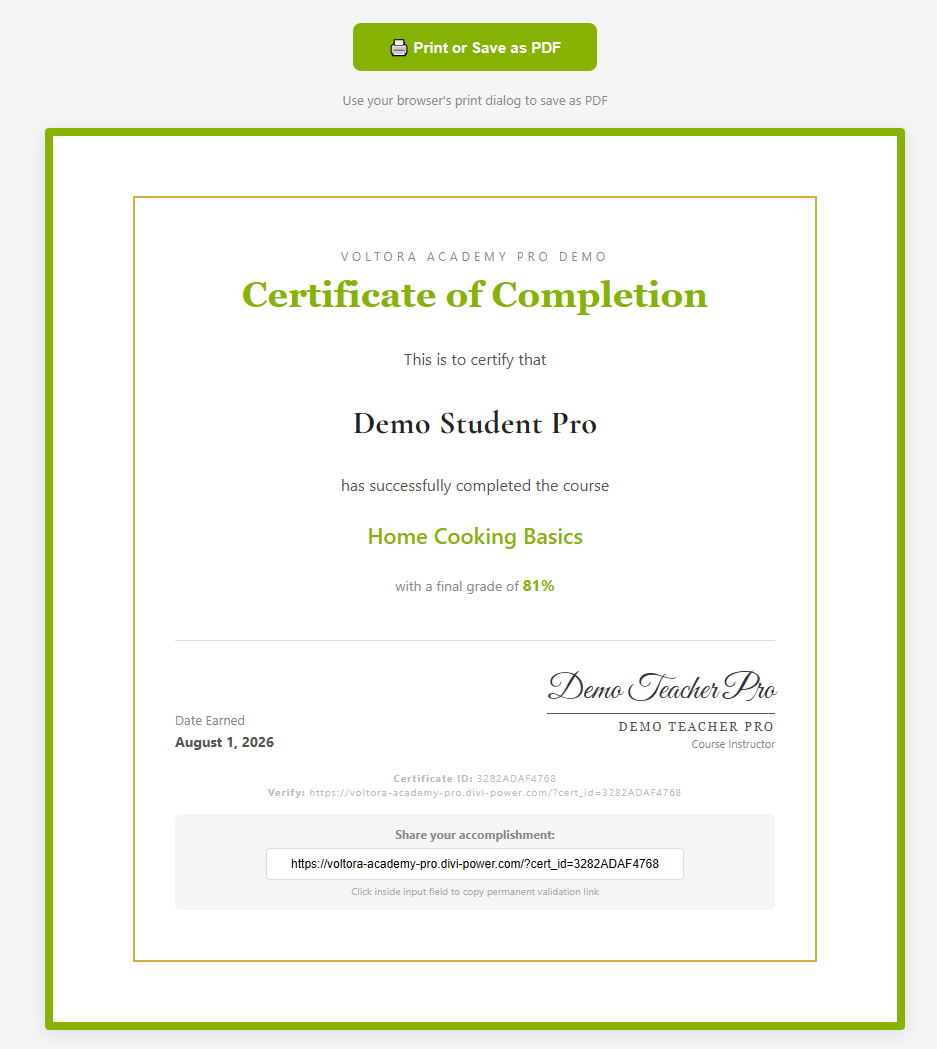
When you finish a course in Voltora Academy Pro, you earn a shareable Certificate of Completion with a unique verification ID that anyone can use to confirm it is genuine.
This article shows you where the certificate appears, what it contains, how to save it as a PDF, and how to share or verify it.
Before you start
- You are logged in as a student on a Voltora Academy Pro site.
- You have reached 100% Complete on the course (every lesson marked complete and every quiz passed).
Steps — open your certificate
- Open My Account and look in the Accomplishments section of the sidebar — your completed course is listed there.
- Open the completed course. On the course hub, the Up Next panel reads Course Completed!.
- Click the certificate link to open the Certificate of Completion page.
What the certificate shows
- Header: YOUR ACADEMY'S NAME
- Title: Certificate of Completion
- Recipient: your student name (for example, Demo Student Pro)
- Course: the course you completed (for example, Home Cooking Basics)
- Final grade: for example, with a final grade of 81%
- Instructor: the course instructor name and title (for example, DEMO TEACHER PRO — Course Instructor)
- Date Earned: for example, August 1, 2026
- Certificate ID: a unique code (for example, 3282ADAF4768)
Steps — save and share
- Click Print or Save as PDF. Your browser's print dialog opens.
- Choose Save as PDF (or print) from the dialog. The page hint reads Use your browser's print dialog to save as PDF.
- To share, scroll to Share your accomplishment:. The field shows a permanent validation link (for example, https://voltora-academy-pro.divi-power.com/?cert_id=3282ADAF4768).
- Click inside the input field to copy the permanent validation link. Anyone who opens it can verify the certificate; they do not have to have an account or be logged in.
Tips & things to know
- Each certificate has a unique Certificate ID and a matching verification URL — two people never share the same ID.
- The verification link is permanent, so you can post it on a résumé, portfolio, or social profile.
- Certificates are a Pro-only feature. Lite students do not receive certificates.
Related articles
- Student: View Your Course Progress
- Pro: Gamification (Mastery & Streaks)