Pro: Rate Teachers & Courses
Applies to: Pro
Pro: Rate Teachers & Courses
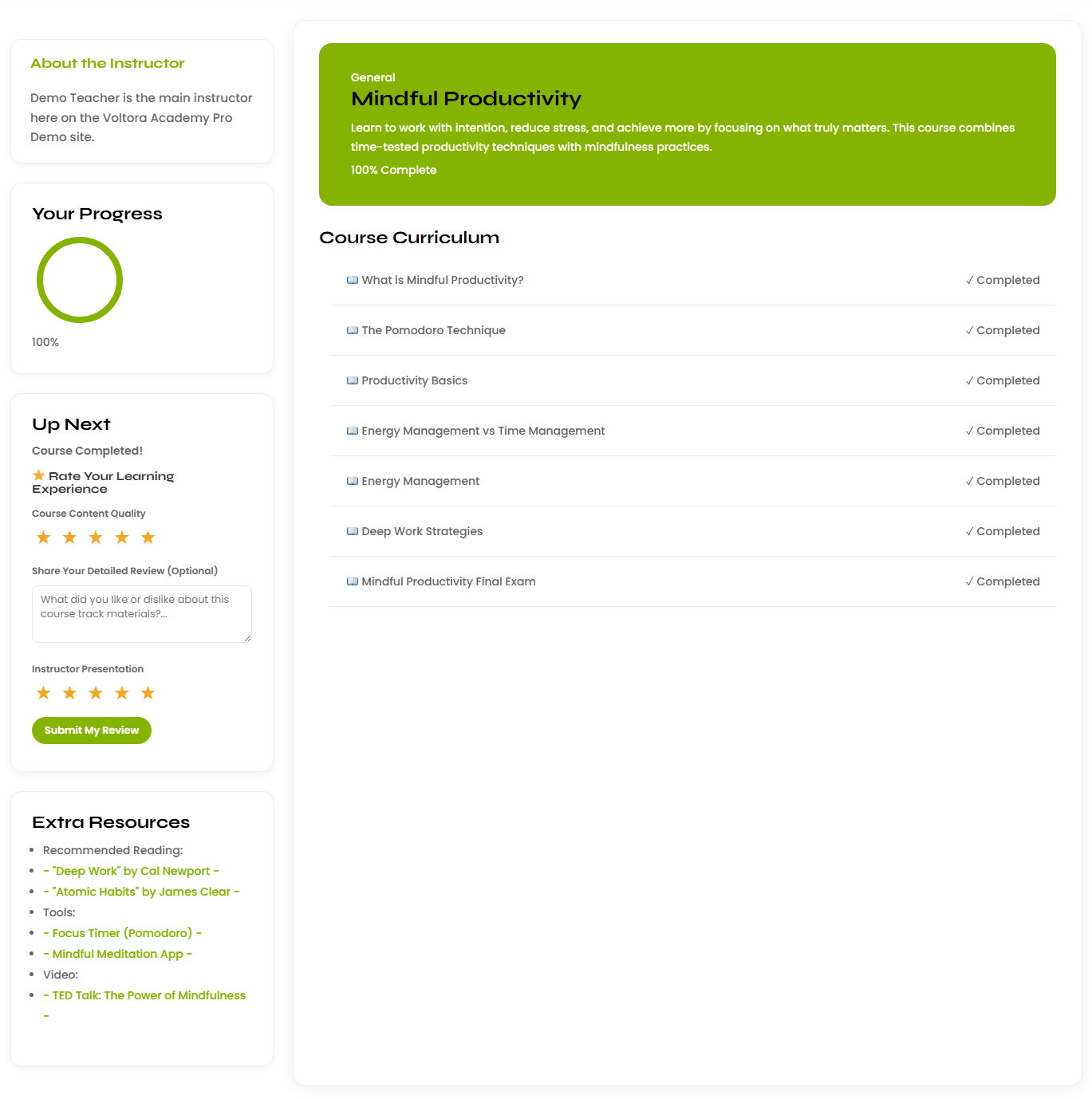
When you finish a course in Voltora Academy Pro, you can leave a star rating for both the course and the instructor. Your feedback helps other students choose well and helps teachers improve.
This article shows where ratings appear and how to submit them.
Before you start
- You are logged in as a student on a Voltora Academy Pro site.
- You have completed the course (or at least reached the rating prompt on the course hub).
Steps — rate a course and instructor
- Open the completed course. On the hub, the Up Next panel shows Course Completed! and your submitted feedback.
- Find the Course Rating and Instructor Rating star controls (for example, Course Rating ★★★☆☆ and Instructor Rating ★★★★★).
- Click the stars to set your rating for each.
Steps — see your ratings later
- Open your student portal on your account page and look at the My Ratings section in the sidebar.
- It lists the reviews you have submitted, or No reviews yet if you have not rated anything.
Tips & things to know
- You rate the course and the instructor separately — two star sets, half stars included.
- Ratings you submit are visible to administrators alongside the course and teacher records.
- On the Manage Students drill-down, reviews appear as text (for example, "Great course, I learned a lot!").
- Rating teachers and courses is a Pro-only feature and is not available in the free Lite version.