Revenue & Ratings Views
Applies to: Pro
Pro: Revenue & Ratings Views
Voltora Academy Pro gives Admins a complete financial and feedback picture: course revenue on the dashboard, per-teacher revenue, per-student revenue on the Manage Students screen, and all student ratings for teachers and courses.
This article points you to each view.
Before you start
- You are logged in as an Admin on a Voltora Academy Pro site.
- You have paid (WooCommerce-linked) enrollments for meaningful revenue data.
Steps — revenue views
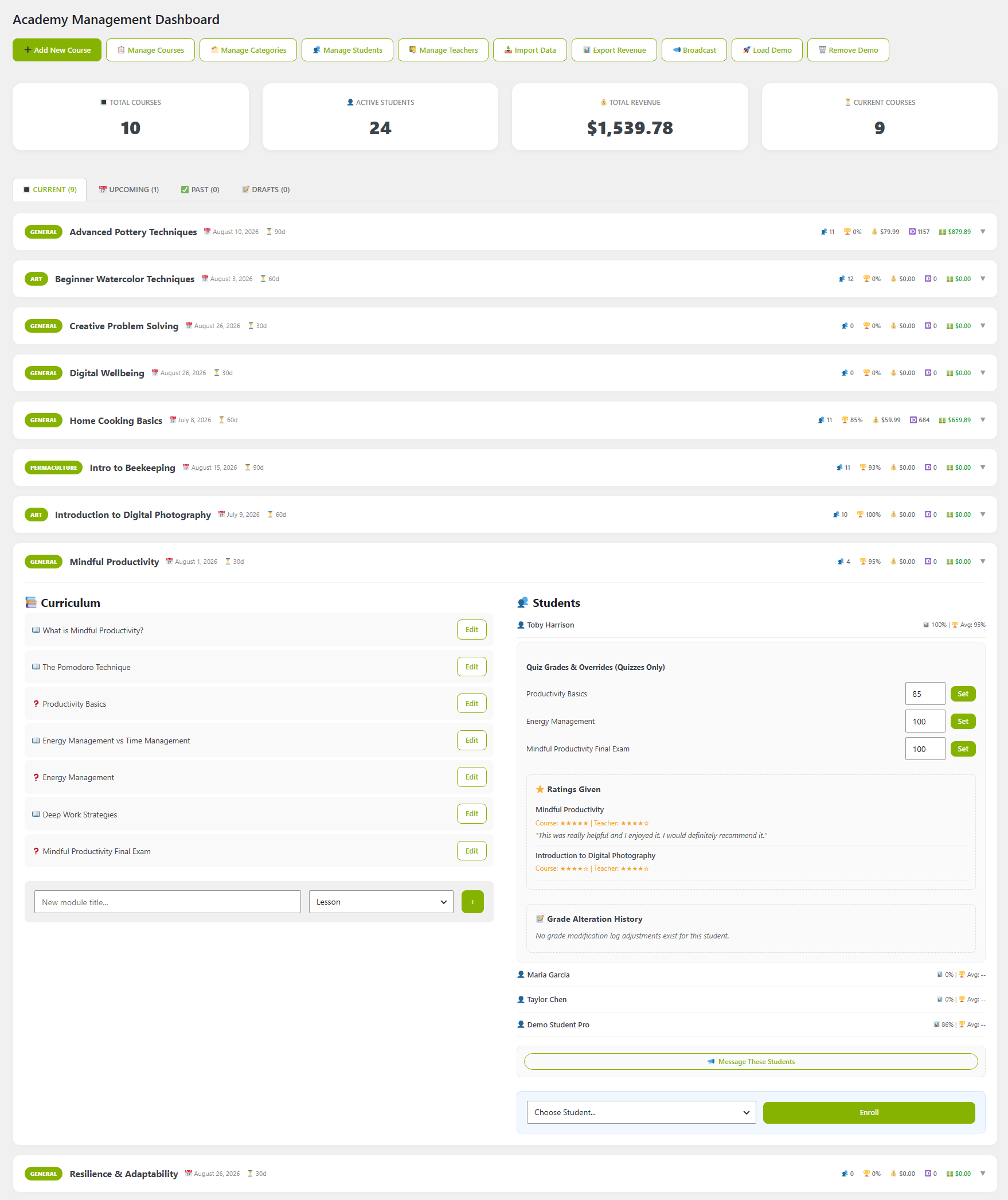
- Open the Academy Management Dashboard. The Total Revenue card sums current-course revenue (for example, $439.93).
- Each course row shows its price and total revenue (for example, $59.99 price, $179.97 revenue).
- Open Manage Students. The table includes a Total Spent column per student (for example, $59.99), giving per-student revenue.
- Open a student drill-down to see each course's amount spent and status.
- Open Manage Teachers. The table includes a Total Revenue column per teacher (for example, $59.99), and the drill-down per teacher gives per-course revenue.
Steps — ratings views
- In a student drill-down, the Ratings Given section lists the course and teacher star ratings that student submitted (for example, Course 5 stars / Teacher 5 stars), plus any written review text.
- Admins can see all student ratings for teachers and courses across the academy from these views. Teachers can only see star ratings for the courses they teach.
Tips & things to know
- Revenue requires courses linked to WooCommerce products (see Pro: Create a WooCommerce Course Product).
- Total Spent on Manage Students is the per-student revenue figure administrators use for payouts and reporting.
- Revenue and ratings views are Pro-only features.