Pro: Issue a Refund
Applies to: Pro
Pro: Issue a Refund
Voltora Academy Pro lets an Admin issue a refund to a student. The refund is coordinated with WooCommerce so the academy's books stay correct — the course enrollment and the order are handled separately.
This article shows where the refund action lives and what to check first.
Before you start
- You are logged in as an Admin on a Voltora Academy Pro site with WooCommerce active.
- The student has a paid enrollment you intend to refund.
Steps — issue a refund
- Open Manage Students from the Academy Management Dashboard.
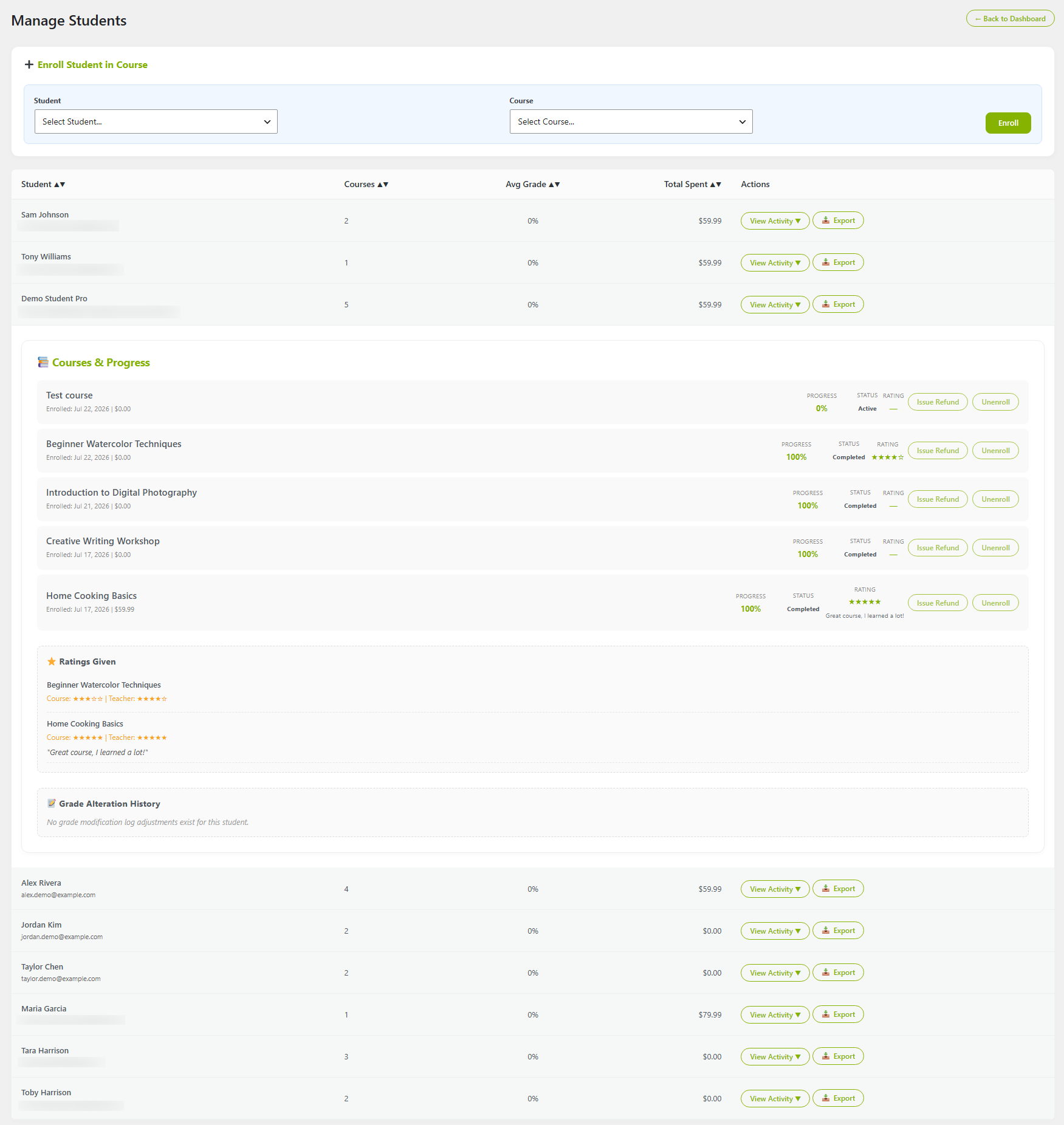
- Find the student and open their drill-down (the + Enroll Student in Course area and the student table with Student, Courses, Avg Grade, Total Spent, Actions columns).
- In the student's Courses & Progress list, each course row has Issue Refund and Unenroll buttons.
- Click Issue Refund on the course to refund. The action coordinates with WooCommerce to keep records consistent.
- Confirm the refund completes; the student's Total Spent and enrollment status update accordingly.
- To also unenroll the student, click on the student's row, and click Unenroll.
Tips & things to know
- Issue Refund handles the WooCommerce order; Unenroll only removes course access. Use refund when money is involved.
- The drill-down also shows a Grade Alteration History (audit trail) for the student — useful context before a refund.
- Issuing refunds is a Pro-only Admin feature.
Related articles
- Pro: Revenue & Ratings Views
- Enroll/Remove Students