Enroll or Remove Students
Applies to: Lite & Pro
Enroll or Remove Students
For: Teachers & Administrators
Add a student to a course so they can access its lessons, or remove a student when they no longer need access. In Voltora Academy Lite, teachers can enroll and unenroll students only in the courses they teach.
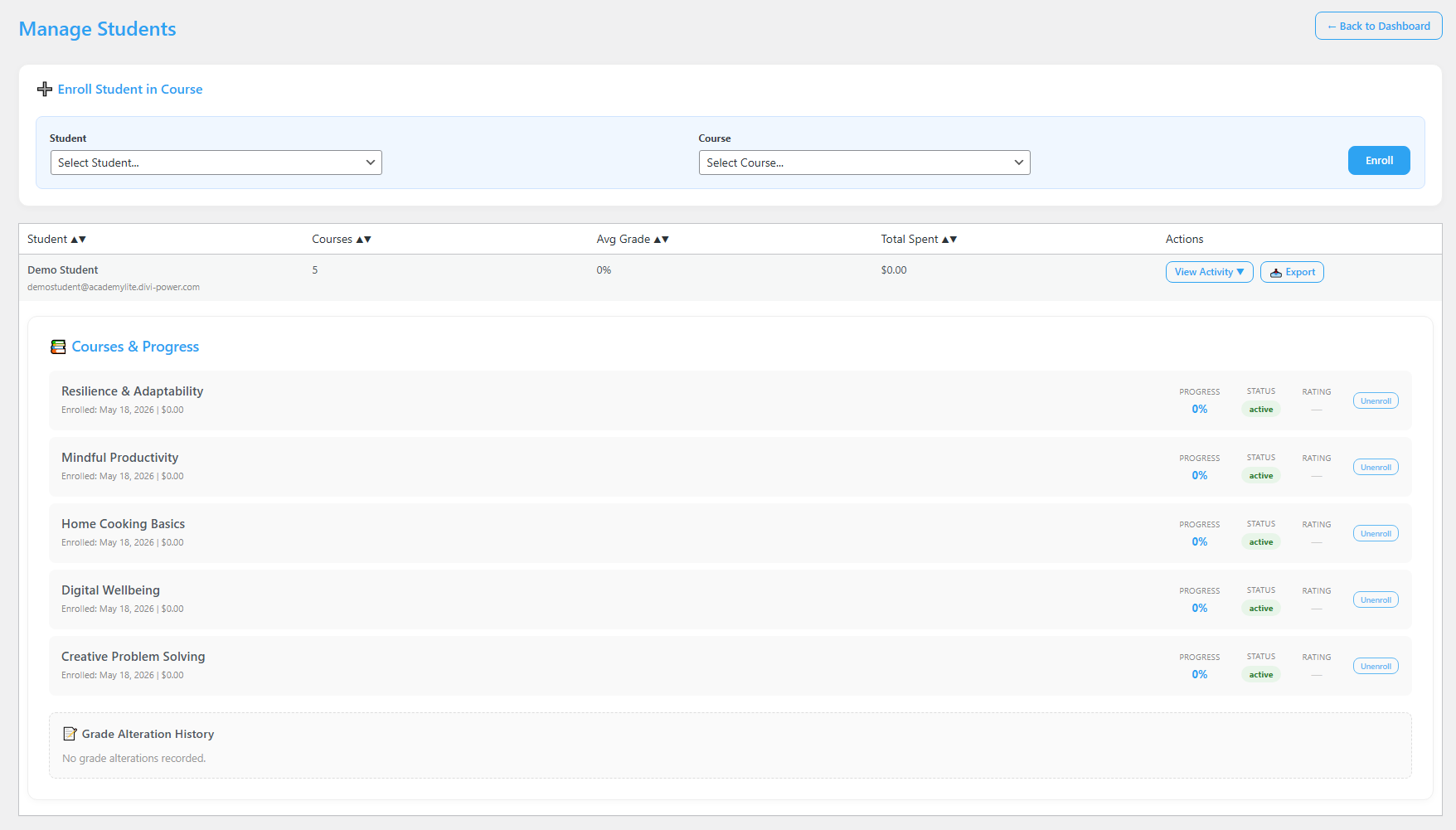
The Manage Students screen is where enrollment happens. At the top you enroll a student into a course; lower down, you see each student’s courses and can unenroll them one at a time. Any grade change you make is recorded in a Grade Alteration History that only an Administrator can see.
Before you start
- You are logged in as a Teacher or Administrator.
- The student already has a user account on your site. (If they do not, they create one by registering on your site first.)
- You are on the Manage Students screen. From the Voltora Academy menu in your WordPress dashboard, choose Students.
Enroll a student in a course
- In the + Enroll Student in Course section at the top, open the Student dropdown and choose the student.
- Open the Course dropdown and choose the course.
- Click Enroll. The student now has access to that course.
Enroll a student from the main dashboard
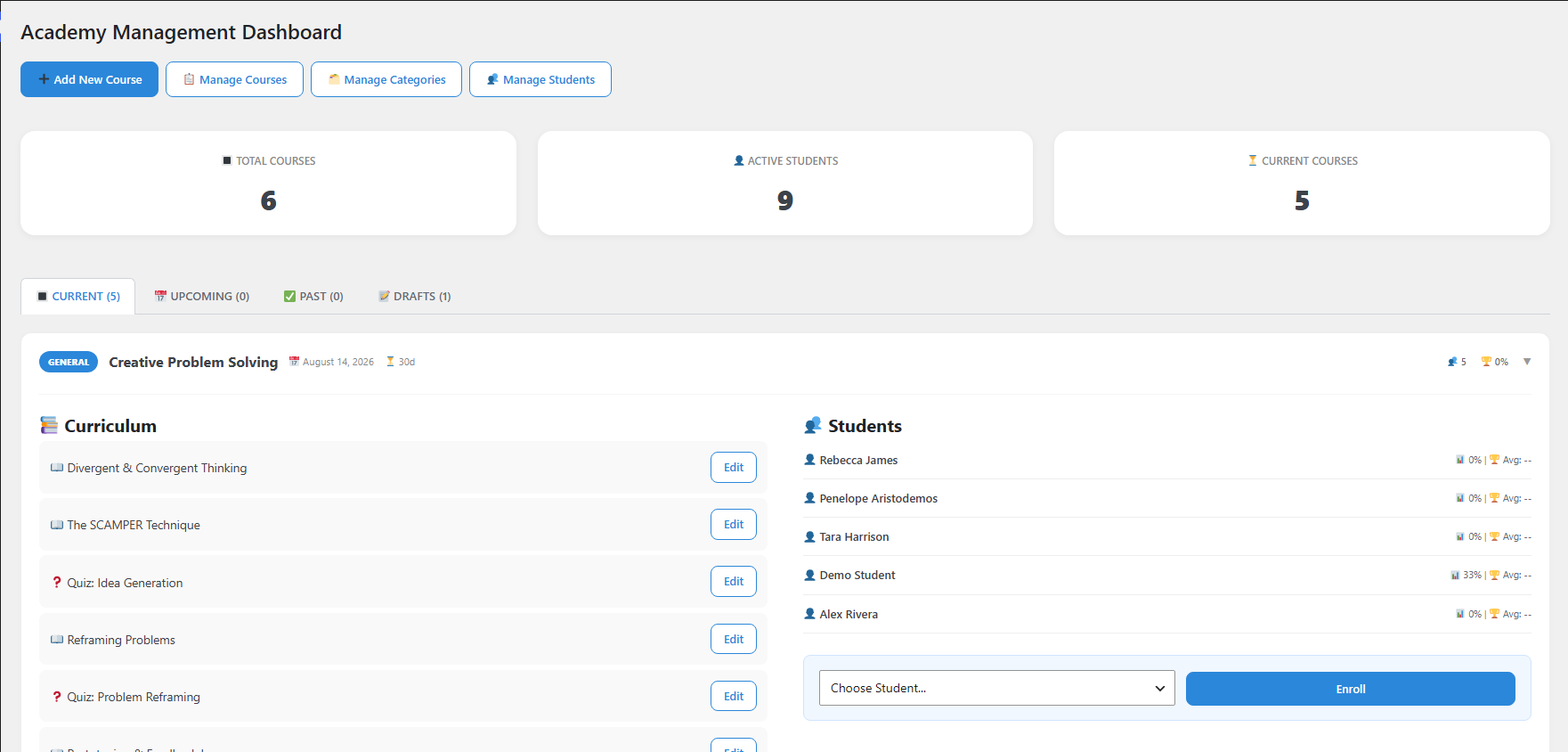
You can also enroll a student from the course itself on the main dashboard, without opening the Manage Students screen.
- On the main dashboard, click the course name. The course opens.
- On the right side of the course (the student side), open the student dropdown and choose the student’s name.
- Click Enroll. The student now has access to the course.
Remove a student from a course
- In the Courses & Progress list for the student, find the course from which the student is to be unenrolled.
- Click Unenroll next to that course. The student loses access to it.
Tips & things to know
- In Lite, a teacher can only enroll or unenroll students in courses they themselves teach. Administrators can manage any course.
- Unenrolling removes access but does not delete the student’s account — they remain a user on your site.
- If you change a student’s grade, that change is logged in a consistent audit trail — the Grade Alteration History at the bottom of the screen — and is visible only to Administrators.
Pro Feature
Enrolling and unenrolling students works the same way in Voltora Academy Pro. Pro adds the ability for Administrators to manage teachers, import students in bulk via CSV, and see per-student revenue on this screen. A student can be refunded and enrolled on the same screen in Pro.
Related articles
- Add a Course
- Manage Courses
- Student: Enroll in a Course