Enroll in and Access a Course
Applies to: Lite & Pro
Enroll in and Access a Course
For: Students
Create a free account, browse the catalog, enroll in a course with one click, and reopen it anytime from your Student Portal or My Account.
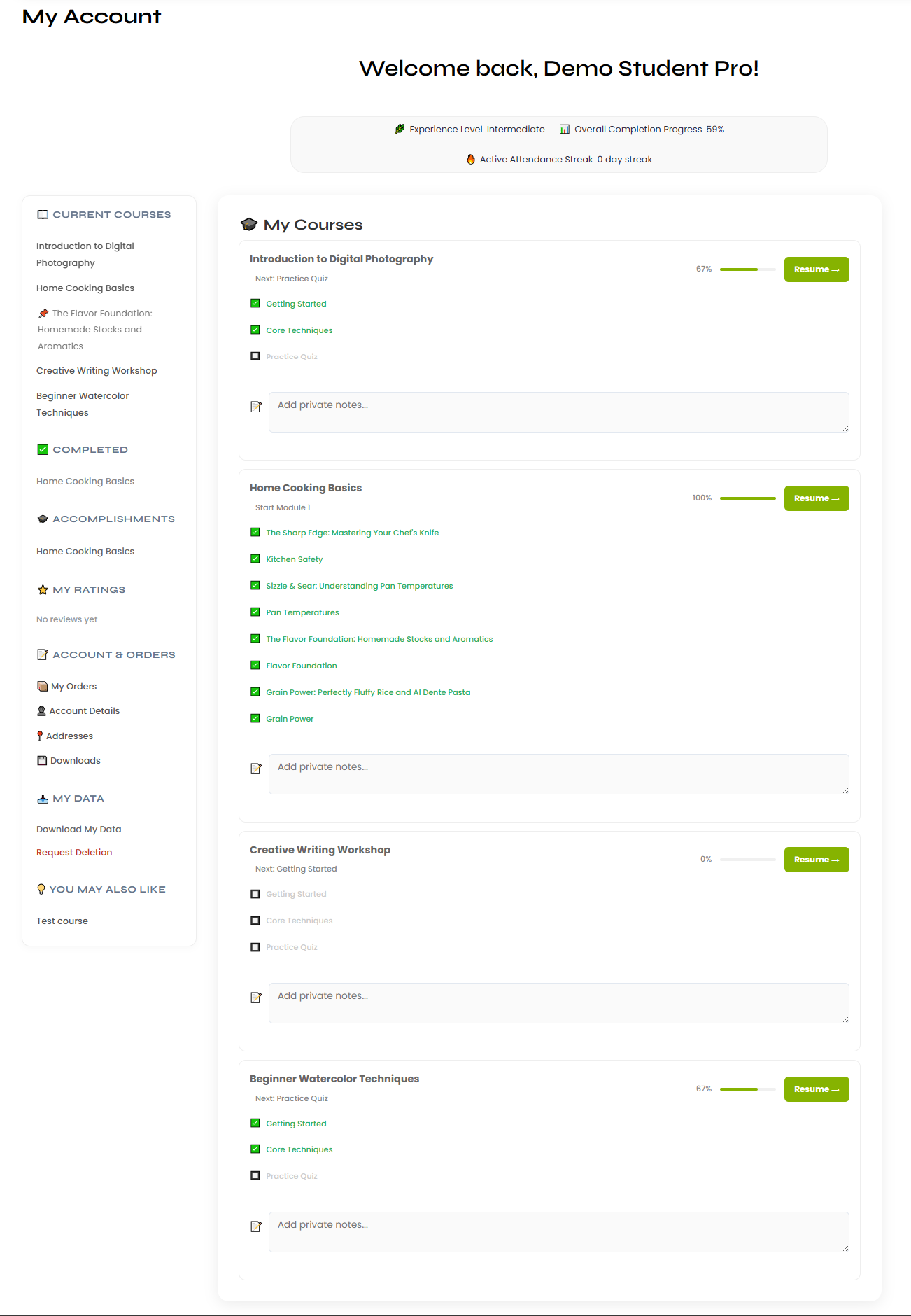
This walks a student through signing up, finding a course in the catalog, enrolling from its preview page, and returning to it later through the Student Portal (also shown as My Account). Once enrolled, the course appears in your “My Courses” list with a progress bar and a “Resume →” button so you always pick up where you left off.
Before you start
- You have a working email address.
- You know which free course you want (all Lite courses are free).
- You are either logged out (new account) or logged in browsing for another course.
Step-by-step
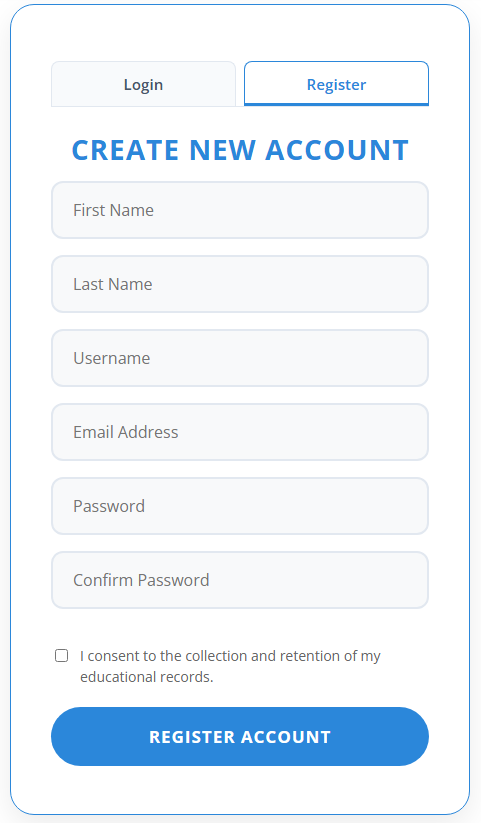
- Create your account. On the login screen, click the Register tab. Fill in First Name, Last Name, Username, Email Address, Password, and Confirm Password. Check “I consent to the collection and retention of my educational records,” then click Register Account.
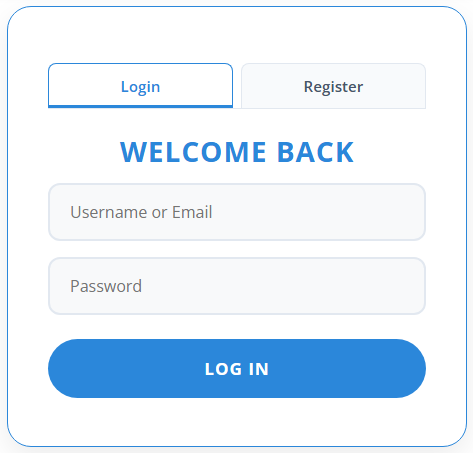
- Log in. On the Login tab, enter your Username or Email and Password, then click Log In.
- Open the catalog. Go to the course catalog (Courses). Use the “All Categories” dropdown to filter and the “Title A-Z” dropdown to sort if you like.
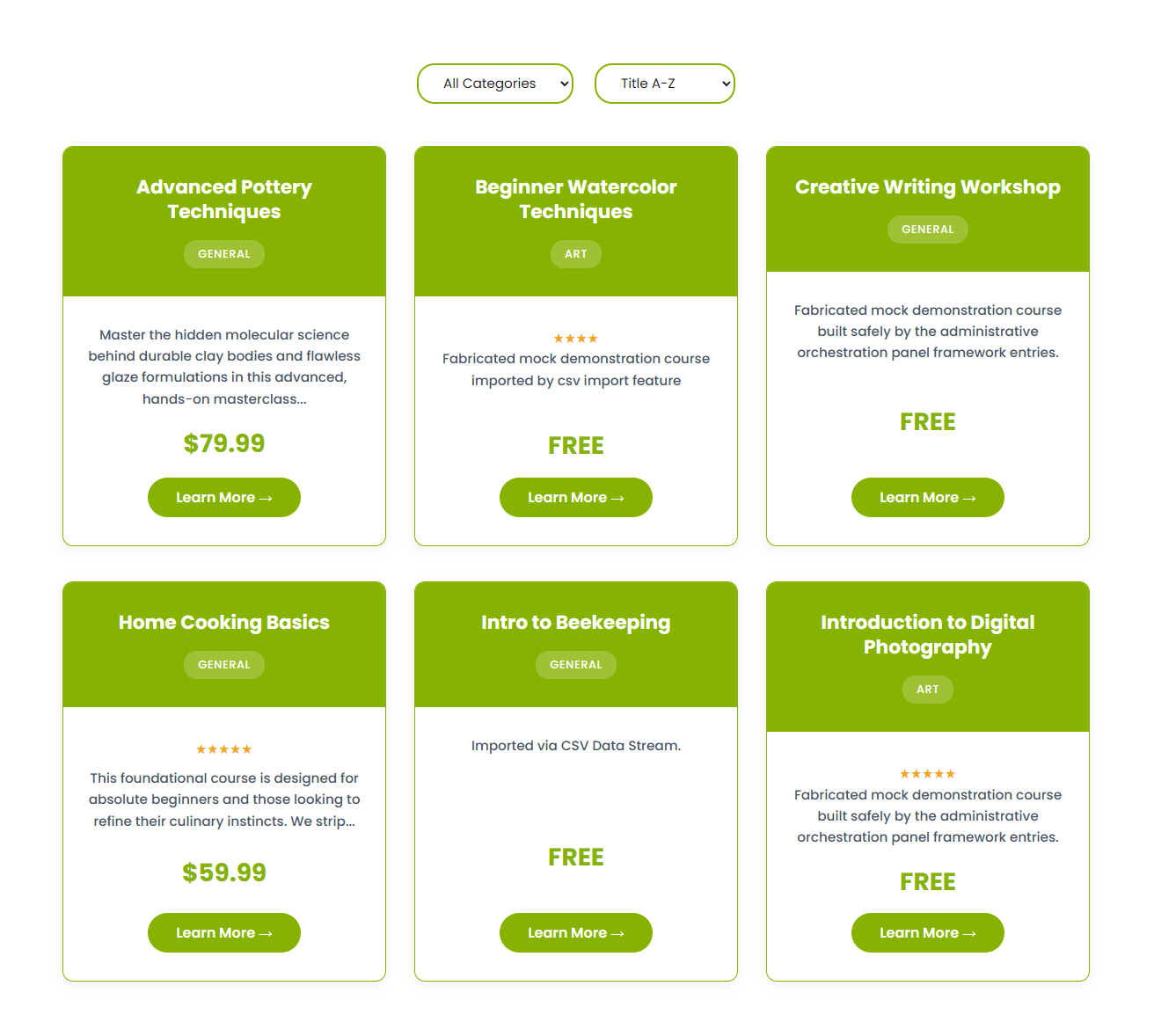
- Open a course. Click a card’s Learn More → button to open that course’s preview page.
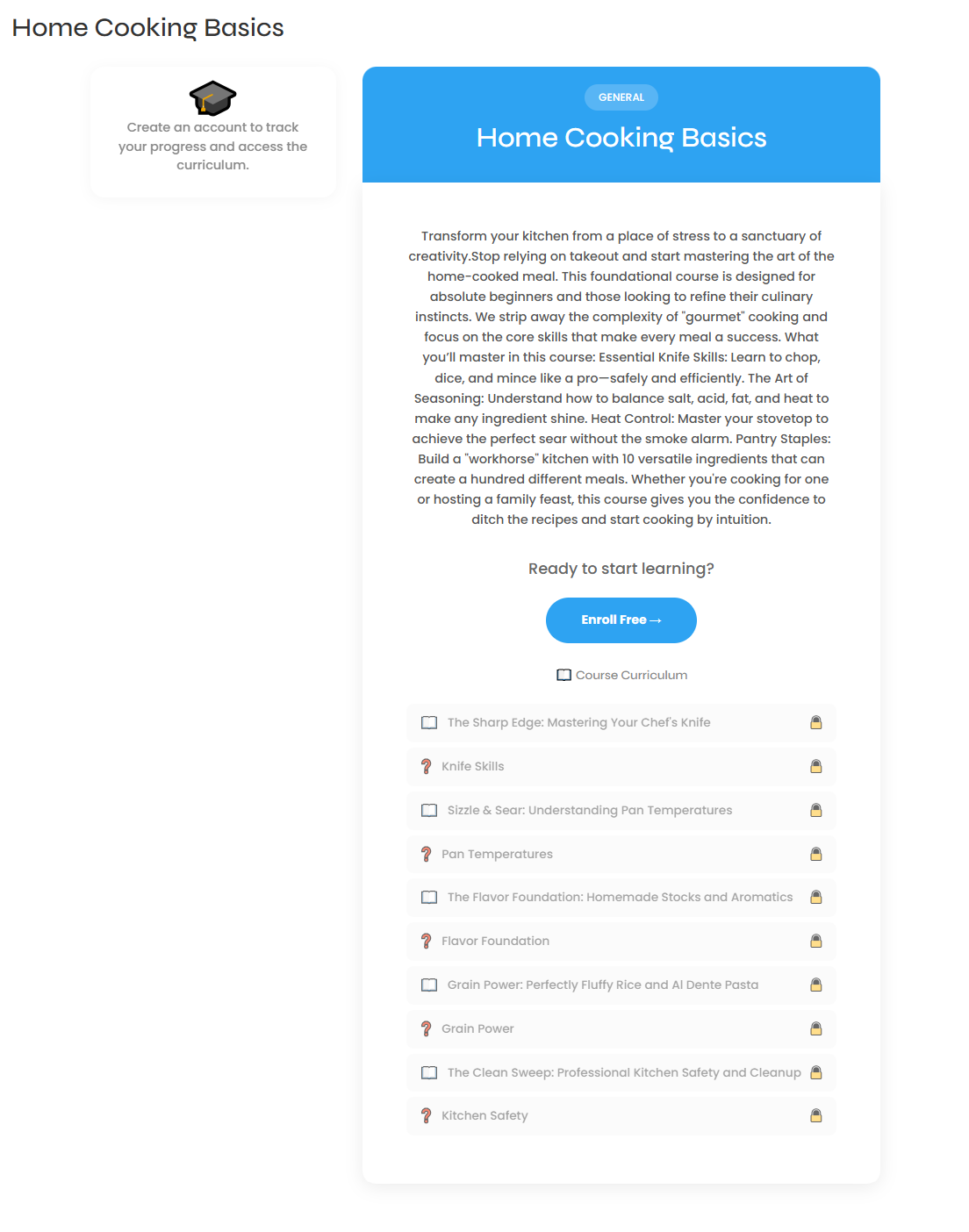
- Enroll. On the preview page, click Enroll Free →. (Lessons in the curriculum list show a lock until you enroll.)
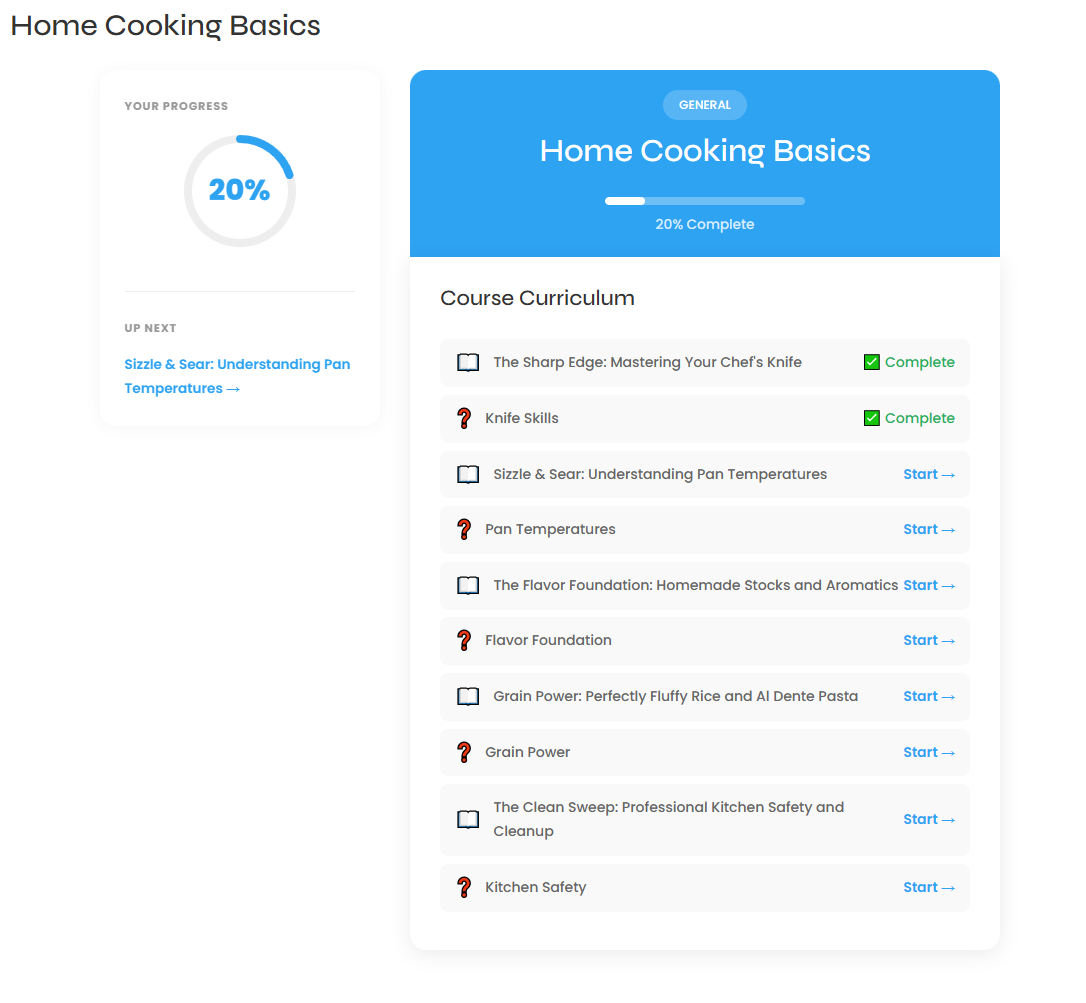
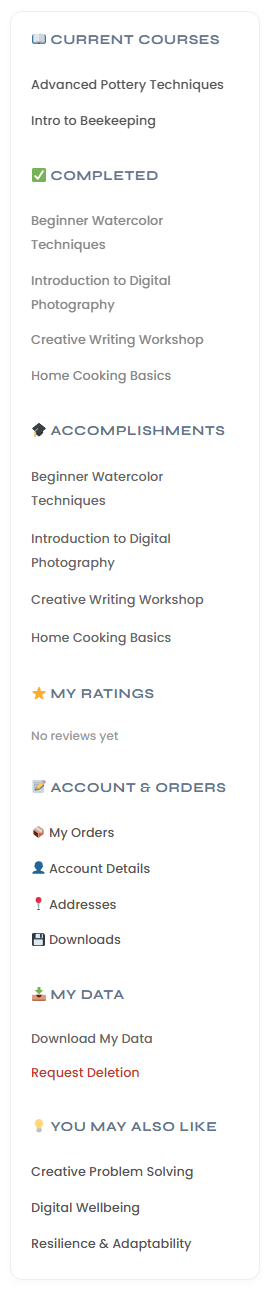
- Find it again later. Open your Student Portal OR your My Account — both show the same “My Courses” dashboard. The course appears with a progress percentage and a Resume → button. Click Resume → to jump to the next unfinished lesson, or click the course name in the left sidebar (“MY COURSES” / “CURRENT COURSES”) to open its hub. Under MY DATA you can also use “Download My Data” or, with care, the “Request Deletion” option.
Tips & things to know
- Enrolled courses stay in “My Courses” — you never re-enroll to return.
- The Student Portal and My Account are two doors to the same course list; use whichever your site shows.
- The left-side progress bar and “Next: [module]” label tell you exactly where to pick up.
- The course hub is where you actually start lessons — enrolling only unlocks them.
Pro Feature
Free courses enroll the same way in Pro. Pro also offers paid courses where the button is a purchase instead of “Enroll Free.” In Voltora Academy Pro, students get extra study tools — a course notes/journal and the ability to bookmark lessons for quick return. These are not included in the free Lite version.