Pro: Manage Teachers
Applies to: Pro
Pro: Manage Teachers
Voltora Academy Pro lets an Admin manage the teacher roster — adding teachers, review course metrics, overall and per-course revenue, grade alteration auditing, reviews and broadcast email hstory. (Lite admins do not manage teachers; that is a Pro-only capability.)
This article shows how to reach teacher management from the dashboard.
Before you start
- You are logged in as an Admin on a Voltora Academy Pro site.
Steps — open teacher management
- Open the Academy Management Dashboard.
- In the top action bar, click Manage Teachers.
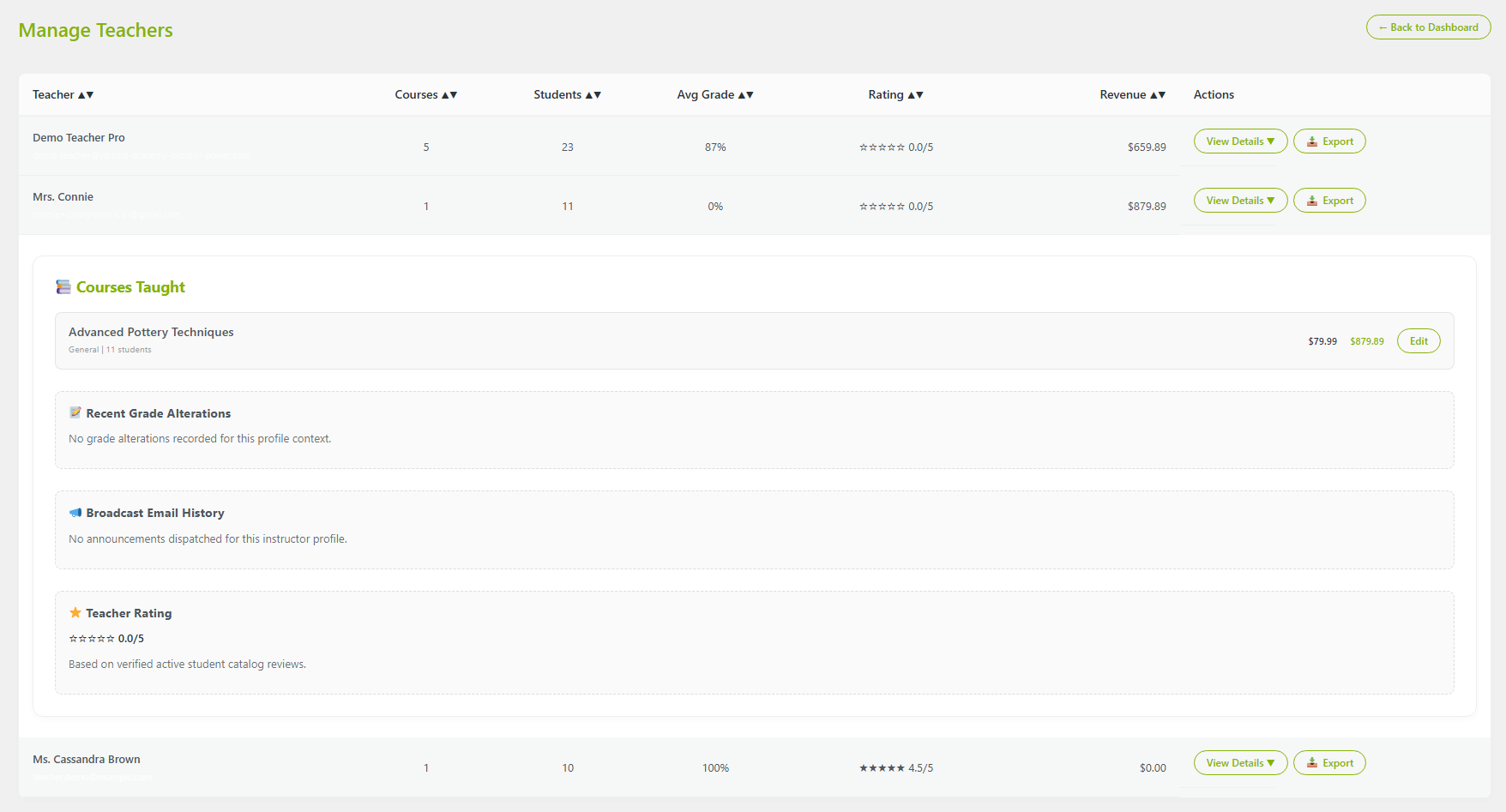
- All columns are sortable on-click.
- You can export per-teacher records in csv format by clicking the Export button; when the box opens, choose the location to save it.
- Either click the View Details button or click the teacher row to open the drill-down and see the per-course info.
Steps — assign a teacher to a course
- You must assign a teacher role within the WordPress Users edit user screen for a teacher to be visible in the dropdown. See Assign Teacher Role
- In Voltora Academy open + Add New Course (or edit an existing course by going to Manage Courses from the dashboard).
- In the left column, use the Teacher dropdown to choose a teacher (options include — None — and any created teacher).
- Click Save Changes.
Tips & things to know
- Managing teachers is a Pro-only feature.
- Teacher management is an Admin function — teachers and Lite admins cannot access it.
- This screen describes what teachers access, and who can teach — assigning a teacher on the course screen controls who appears as the course instructor on certificates and grade records. Changing a teacher does not alter the audit trail of grade modifications or teacher ratings.
- Click Edit to go directly to the course edit screen.