Assign a Teacher Role
Applies to: Lite & Pro
Assign a Teacher Role
Voltora Academy creates Teacher and Student roles automatically. Users are assigned the Student role when they register for a free course (or, in Pro, purchase a course and enroll). Teachers are assigned within the WordPress User manager.
This article shows how an Admin assigns the Teacher role to an existing WordPress user so they appear in the teacher dropdown on courses.
Before you start
- You are logged in as an Admin in the WordPress dashboard.
- The user you want to make a teacher already exists (or create them first under Users → Add New).
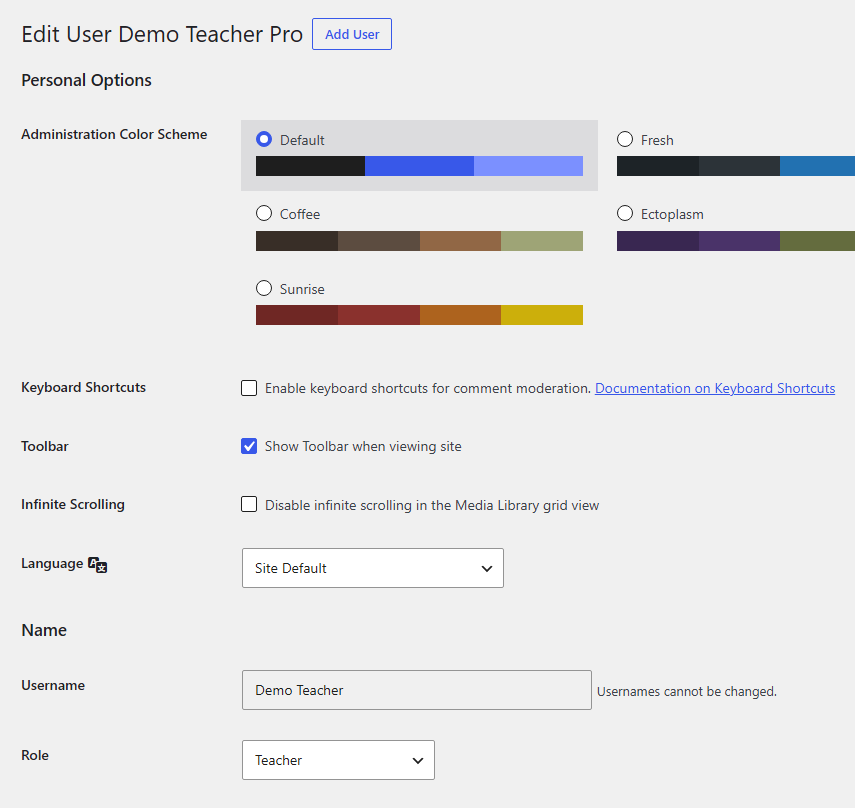
Steps — assign a user as a Teacher
- Go to Users in the WordPress dashboard.
- Find the user you want to assign as a teacher, then click Edit.
- Choose Teacher in the Role dropdown.
- You can add Biographical Info in the “About the User” section, as well as a profile photo.
- Click Save.
Tips & things to know
- The user will now show in the teacher dropdown in Add New Course or Edit Course in the Voltora Academy admin.
- Students are created automatically on registration/enrollment; you do not assign the Student role by hand.
- WordPress does not automatically enable actual bio photos, you'll need to use a plugin like Gravatar or other plugin to use an actual profile photo.
- Biographical Info and the profile photo (if you have a plugin that enables it) appear on the teacher's public course pages where supported.