DealVault: Register, Pause, or Delete a Deal
Applies to: PowerTools Suite & Conversion Deck
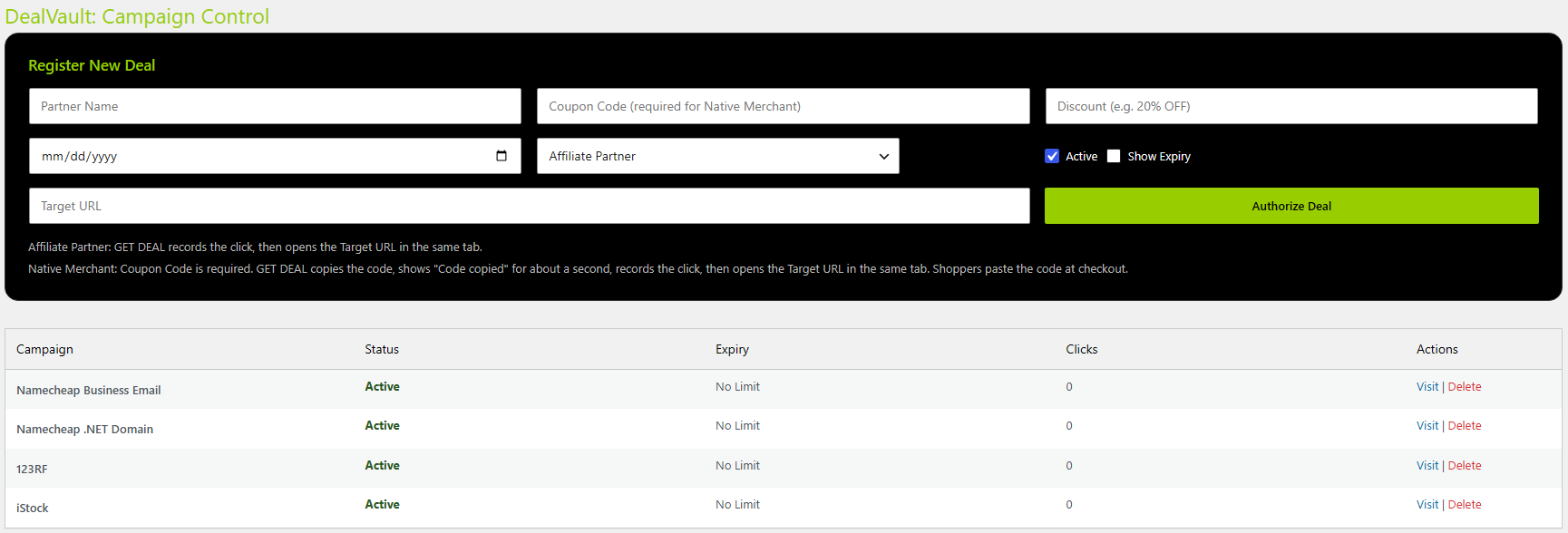
DealVault shows a list of your active partner deals and coupons on a page. When a visitor clicks GET DEAL on an affiliate deal, the click is recorded and the partner's page (the Target URL) opens in the same tab. On a coupon, the coupon code is copied to the visitor's clipboard, the click is recorded, and about a second later the product page opens in the same tab.
Before you start
- Have each partner's or product's name, code (if any), savings text, and destination URL ready.
- There are two kinds of deals. You choose the kind with the dropdown on the form:
- Affiliate Partner: GET DEAL records the click, then opens the Target URL in the same tab.
- Native Merchant: Coupon Code is required. GET DEAL copies the code, shows "Code copied" for about a second, records the click, then opens the Target URL in the same tab. Shoppers paste the code at checkout.
- If you pick Native Merchant and leave Coupon Code empty, the deal isn't saved and you'll see: "Native Merchant deals need a Coupon Code. Add the code shoppers will paste at checkout." Whatever you typed stays in the form.
Step-by-step
Register an affiliate deal
- Open DealVault. In WordPress admin, go to PowerTools Suite → DealVault.
- Under Register New Deal, fill in:
- Partner Name (example: Riverside Bakery)
- Coupon Code: leave it blank. Nothing is copied for an affiliate deal.
- Discount text (example: 20% off your first order)
- Target URL: the partner page the visitor goes to. Put your affiliate code into this link, the way your partner tells you to.
- Leave the dropdown on Affiliate Partner. This is the default.
- Set Active.
- Set Expiry and Show Expiry if the deal ends on a certain date (optional).
- Click Authorize Deal. Active and Show Expiry save exactly as you ticked them.
Register a coupon
- Open DealVault. In WordPress admin, go to PowerTools Suite → DealVault.
- Under Register New Deal, fill in:
- Partner Name (the name to show on the coupon)
- Coupon Code (required, example: SPRING20). Every coupon needs a code. This is what the visitor copies.
- Discount text (example: 20% off)
- Target URL: enter the product page. This is where the visitor goes after the code is copied.
- Click the dropdown arrow on Affiliate Partner and choose Native Merchant.
- Set Active.
- Set Expiry and Show Expiry if the coupon ends on a certain date (optional).
- Click Authorize Deal. Active and Show Expiry save exactly as you ticked them.
Pause, expire, or delete a deal
The deal list in admin shows all your deals, including paused and expired ones, so you can always find a deal again.
- Pause: click Active in the status column to switch it to Paused. Click again to turn it back on. Paused deals stay in the list but don't show on the page.
- Expire: set an Expiry date on the deal. Turn on Show Expiry if you want visitors to see the end date.
- Delete: removes the deal from the vault.
Tips & things to know
- Works with any store. Shoppers paste the copied code at checkout, so coupons work with any store or platform, such as WooCommerce, Shopify, Etsy, and others.
- Clicks from logged-in visitors are counted too. If someone clicks the same deal again within a few seconds, it counts once, but they're still sent on every time.
- To add many deals at once, use PowerTools Suite → PowerPort and choose DealVault Deals.
What it does not do
- It does not apply coupons in WooCommerce checkout. It copies the code for the visitor and records the click.
- It is not an affiliate network. You manage your partners and links.
- It does not work with Divi 4.