Pro: Import Data via CSV (Column Mapping)
Applies to: Pro
Pro: Import Data via CSV (Column Mapping)
Voltora Academy Pro can bulk-import teachers, categories, courses, students, enrollments, and grades from a CSV file. The import uses a column-mapping step so your CSV headers line up with the plugin's fields.
This article walks through the Map Columns screen and the recommended import order.
Before you start
- You are logged in as an Admin on a Voltora Academy Pro site.
- You have a prepared CSV file with a header row.
Steps — select file to import
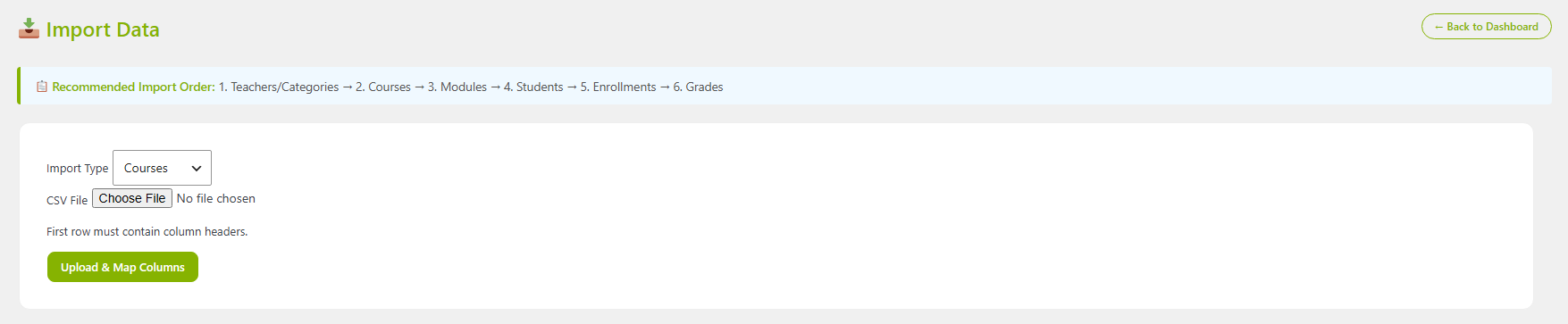
- On the Academy Management Dashboard, click Import Data.
- Follow the Recommended Import Order banner: 1. Teachers/Categories → 2. Courses → 3. Modules → 4. Students → 5. Enrollments → 6. Grades. Import in this sequence so references resolve.
Steps -- map and run an import
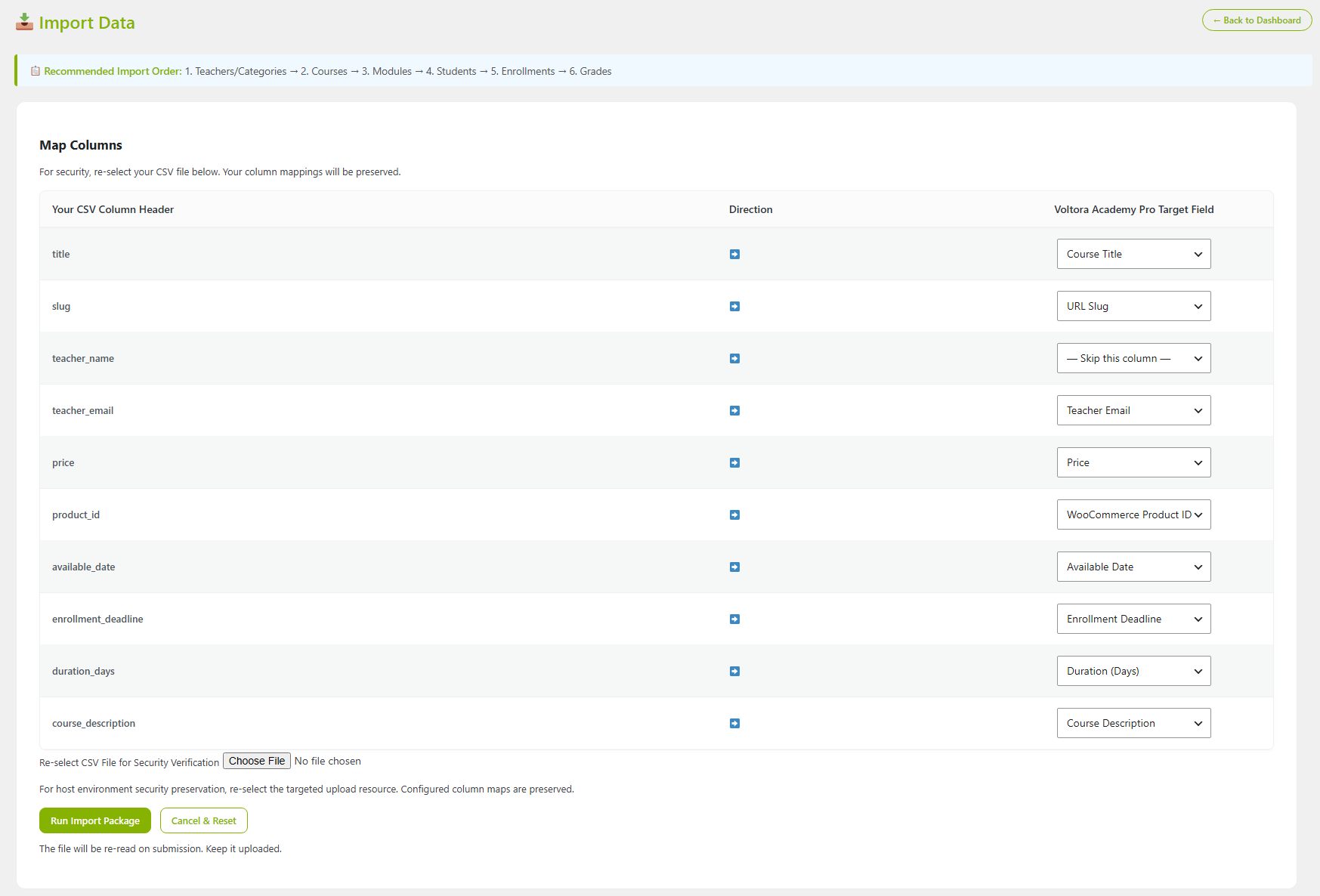
- On the Map Columns screen, confirm each Your CSV Column Header maps to the correct Voltora Academy Pro Target Field via the direction arrow. Example mappings:
title→ Course Titleslug→ URL Slugteacher_name→ — Skip this column —teacher_email→ Teacher Emailprice→ Priceproduct_id→ WooCommerce Product IDavailable_date→ Available Dateenrollment_deadline→ Enrollment Deadlineduration_days→ Duration (Days)course_description→ Course Description
- Under Re-select CSV File for Security Verification, click Choose File and re-select your CSV. The helper text notes your column mappings are preserved.
- Click Run Import Package to execute. Use Cancel & Reset to abandon and clear the mapping.
Tips & things to know
- The security re-select step re-reads the file on submission; keep it uploaded.
- A column you do not need can be set to — Skip this column — so its data is ignored.
- After clicking Run Import Package, the import will begin and you will be able to monitor the progress and see a success message. If there is a failure to import, the reason will be displayed.
- Importing is a Pro-only feature.
Related articles
- Pro: Export Data (CSV)
- Pro: Manage Teachers