PowerPort: Import a CSV into FormulaBot, DealVault, or RSVPify
Applies to: PowerTools Suite & Conversion Deck
PowerPort is the importer for PowerTools Suite. It adds rows from a CSV file to FormulaBot leads or services, DealVault deals, or RSVPify attendees. A step-by-step wizard walks you through upload, destination, mapping, validation, and import, and you can undo your most recent import within one hour.
Before you start
- Use a .csv file only, separated by commas or semicolons.
- Each file can be up to 2 MB and 2,000 data rows. Larger files are rejected with the message "Split the file and import in batches."
- A header row with clear column names makes mapping easier.
- Keep a copy of your original CSV until you've checked the import.
Step-by-step
- Open PowerPort. In WordPress admin, go to PowerTools Suite → PowerPort.
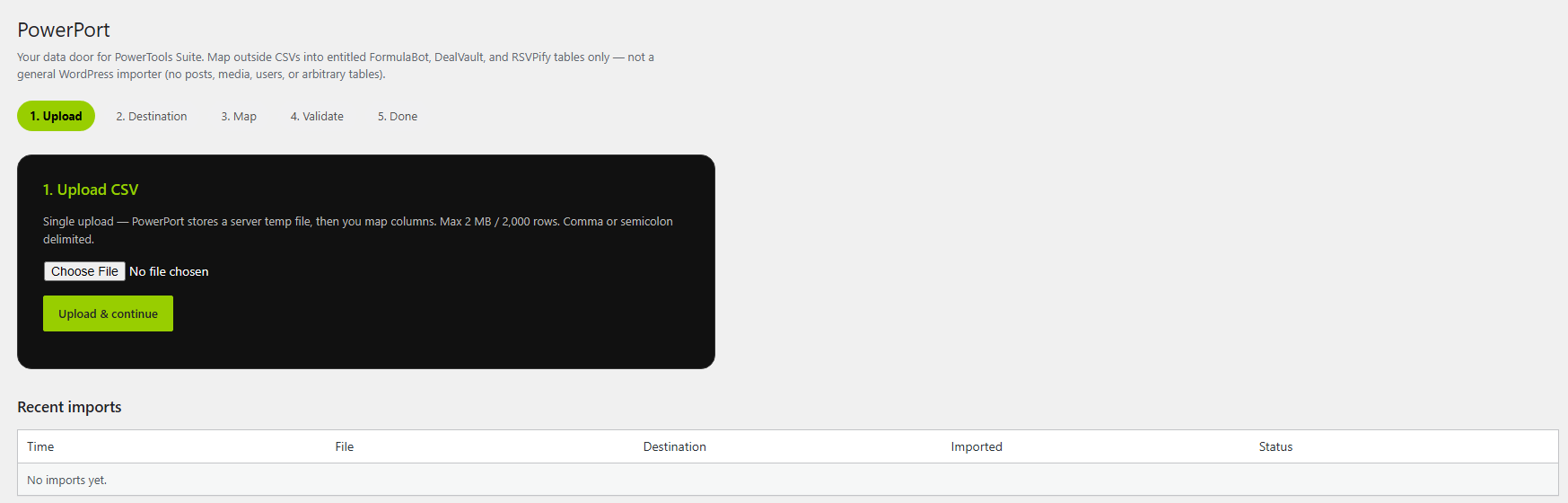
- Upload CSV. Choose your file and continue.
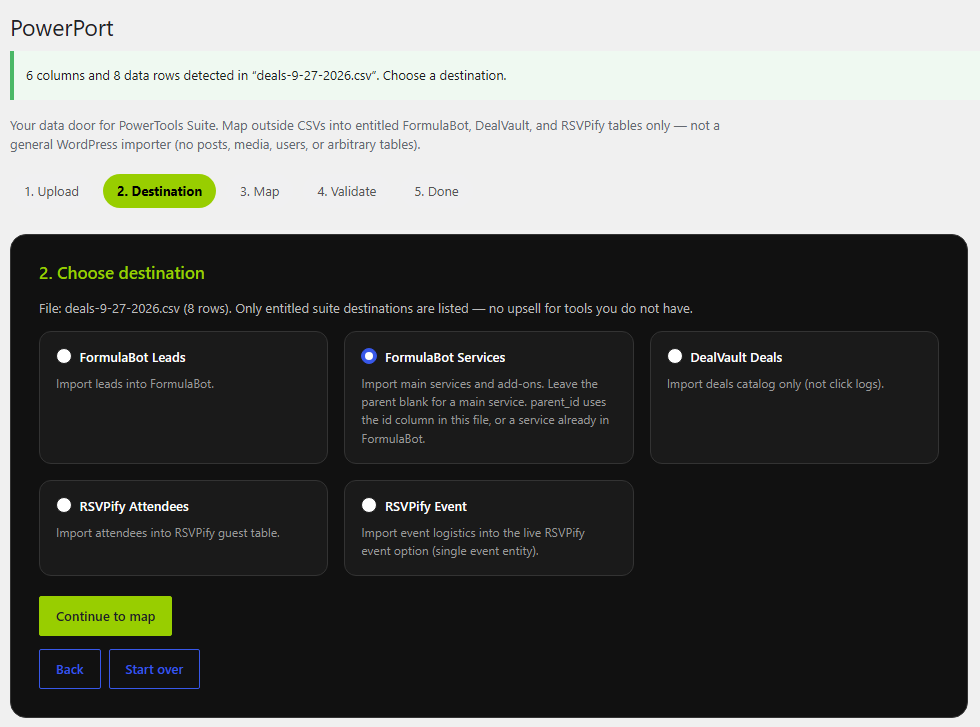
- Choose a destination: FormulaBot Leads, FormulaBot Services, DealVault Deals, or RSVPify Attendees.
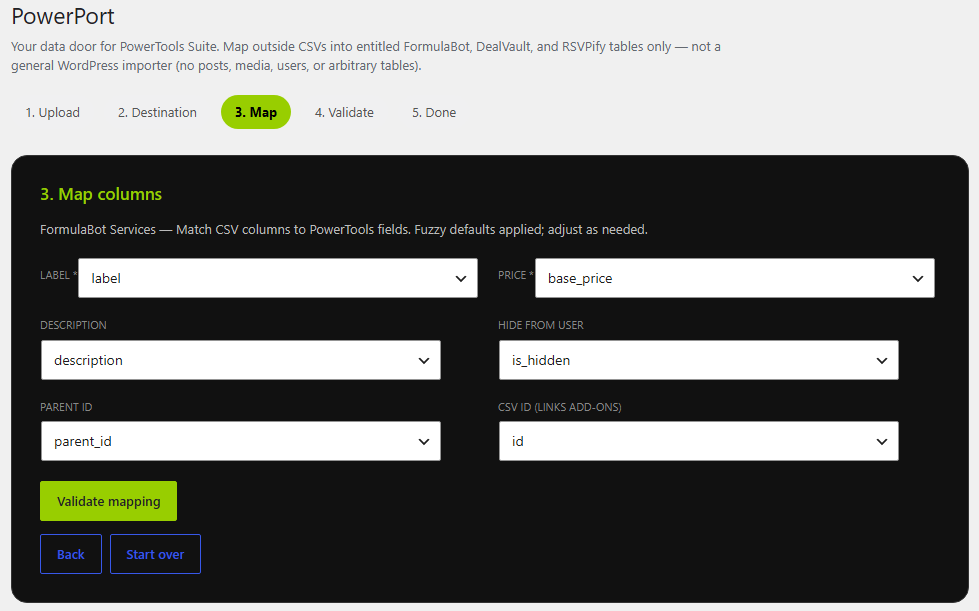
- Map columns. Match each PowerTools field to a column in your CSV. PowerPort suggests matches as a starting point; change any that are wrong. Leave a field unmatched if you don't need it.
- Validate. Review any errors or warnings (see below).
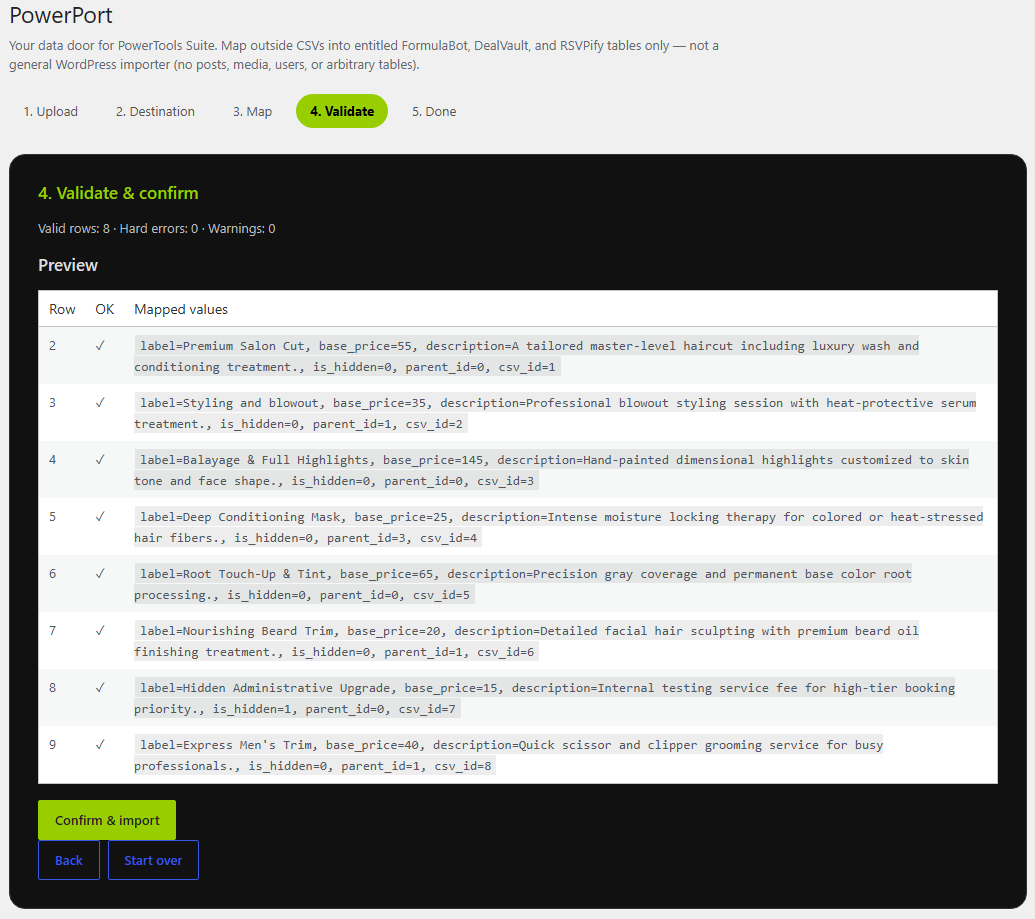
- Click Confirm & import. Watch the progress bar.
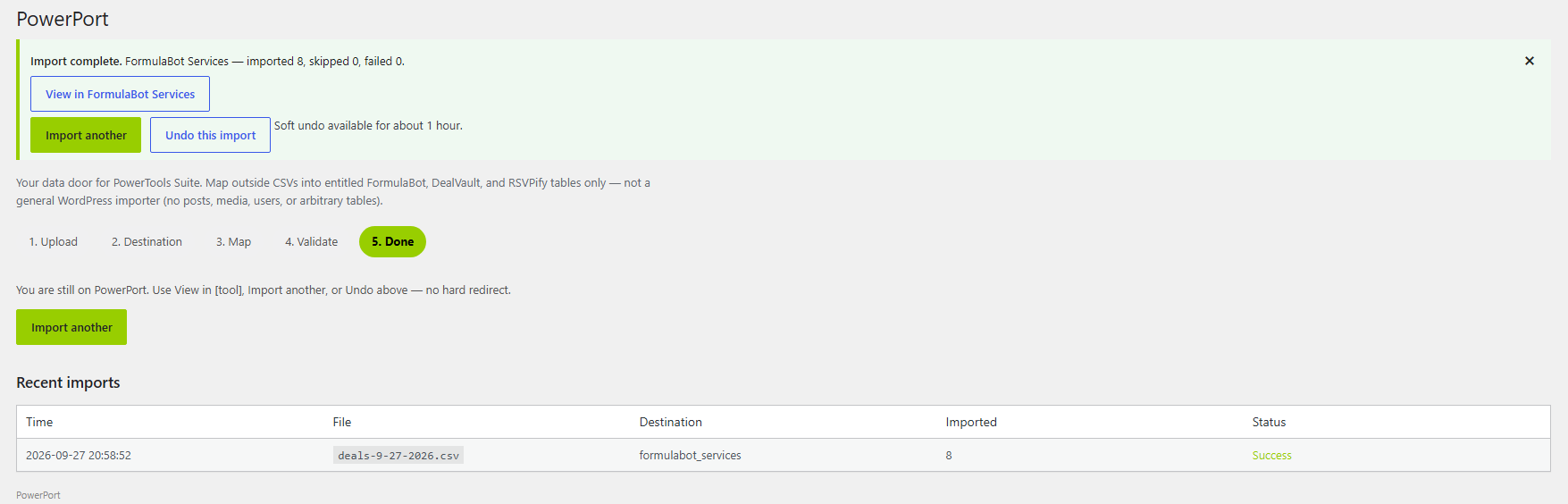
- Choose what's next: View in [tool], Import another, or Undo this import.
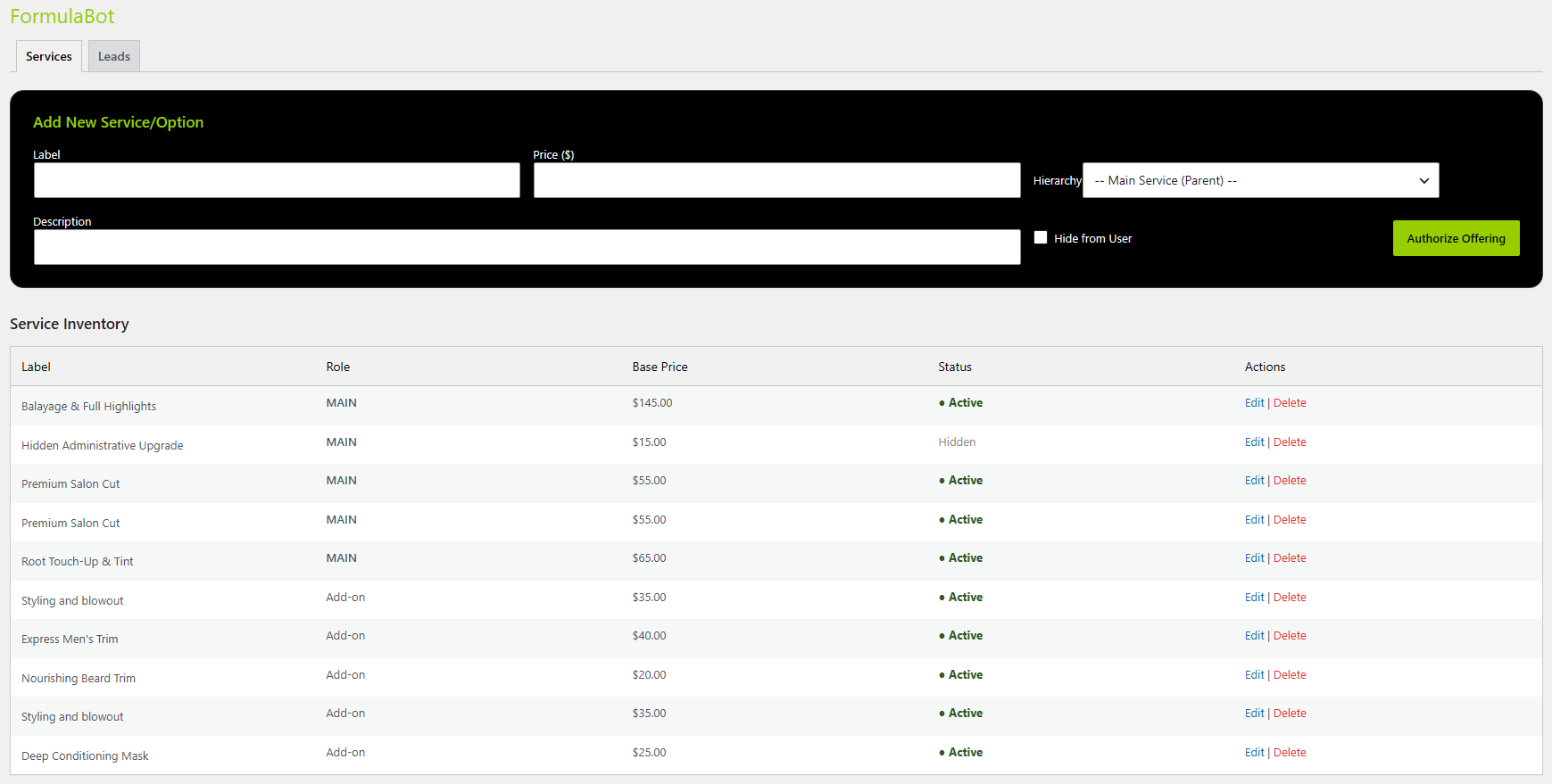
Fix errors and warnings
The Validate step sorts problems into two kinds:
- Hard errors stop the import. A common cause is a value in the wrong format, such as text in an email column that isn't an email address. Fix the value in your CSV and upload it again, or go back and correct the mapping.
- Soft warnings point out something worth checking, such as an unusual value. They don't always block the import. Review them, then decide whether to continue.
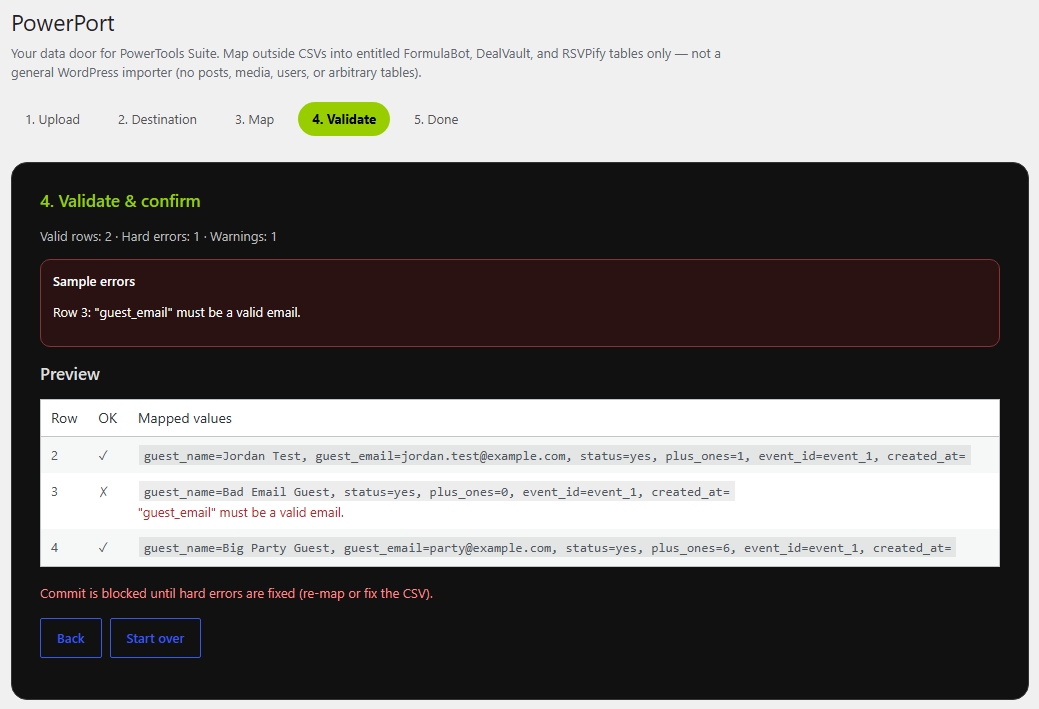
You can go back a screen, or start over at any of the first four steps.
Tips & things to know
- Imports add rows. Each import adds new rows to the tool's existing data. It doesn't replace what's already there, and it doesn't check for duplicates, so importing the same file twice doubles the rows.
- Have a big file? Split it into chunks under 2,000 rows and under 2 MB. Import them one at a time, in order, and check the row count in the tool after each one. Never import the same chunk twice.
- If an import fails partway, don't just try it again. The rows that saved before the failure stay in the tool, so a retry would add them a second time. Check what saved first, then import only the rows that are missing.
- Undo covers only your most recent import, and only within one hour.
- Dates in a created_at column are ignored. Imported rows get the date and time of the import.
- A destination is missing? PowerPort only shows destinations for tools on your license.
- Exports aren't in PowerPort. Each tool has its own CSV export:
- PowerTools Suite → FormulaBot → Leads → Export CSV
- PowerTools Suite → DealVault → Export Click Data (CSV)
- PowerTools Suite → RSVPify → Export RSVP Data (CSV)
What it does not do
- It doesn't import into SpotEdit, LoopLogic, TemplateTruth, Version Control, SEO Design Audit, or LabelWise.
- It doesn't import pages, posts, media, users, or other tables.
- It doesn't send email to your lists. Export from the tool and use your own mail app.
- It is not a full-site backup or migration tool.