FormulaBot: Put the Quote Form on a Page and Test It
Applies to: PowerTools Suite & Conversion Deck
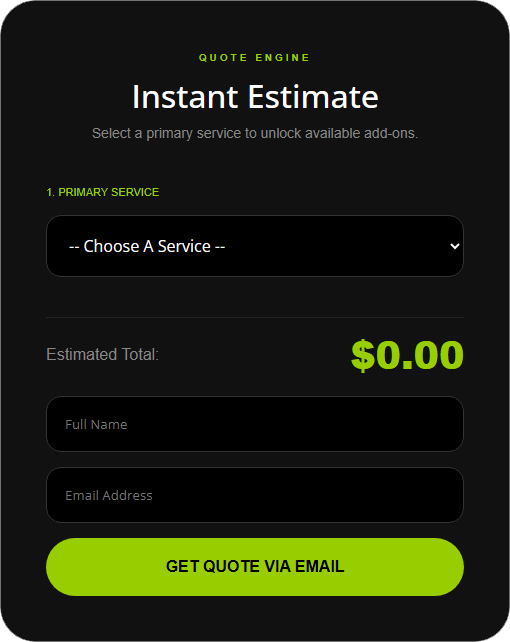
FormulaBot puts an instant quote form on your page. Visitors pick a main service, tick add-ons, see the total update live, and send a quote request. You get the quote by email and the lead is saved in admin.
Before you start
- Make sure your site can send email. Quotes go out through WordPress mail. If you're not sure, send a test email from your SMTP plugin.
- You have at least one visible main service in PowerTools Suite → FormulaBot → Services.
Step-by-step
Put the quote form on a page
- Edit the page in the Divi 5 Visual Builder.
- Insert the FormulaBot module.

- Place the module where you want the form. In the Visual Builder the module shows a placeholder box, not the real quote form. The real quote form shows on the live page.

- Save and view the page.
The module has no settings to change. It shows your visible main services.
Test it
- Choose a main service on the page and tick a few add-ons.
- Enter your name and email and submit.
- Check your inbox for the quote email.
- Go to PowerTools Suite → FormulaBot → Leads and confirm the new row.
Tips & things to know
- Form colors and fonts follow your Divi globals through our SafeColor Engine.
- Quote emails not arriving? See the Troubleshooting article.
What it does not do
- It does not calculate tax.
- It does not use shortcodes, and it does not work with Divi 4.