FormulaBot: Add and Manage Services and Add-ons
Applies to: PowerTools Suite & Conversion Deck
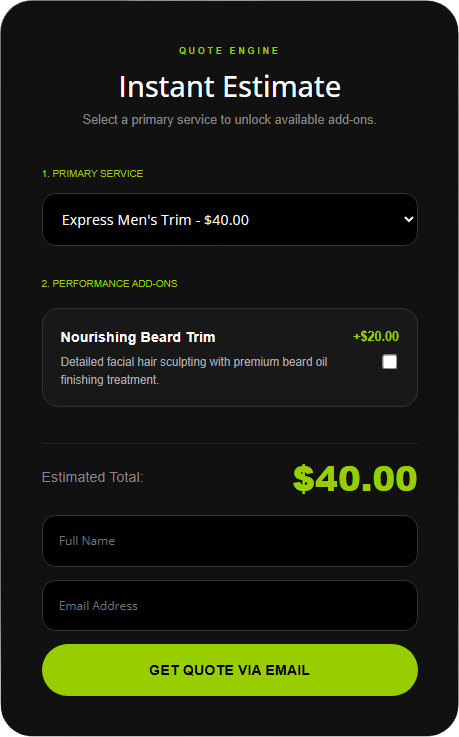
FormulaBot puts an instant quote form on your page. Visitors pick a main service, tick add-ons, see the total update live, and send a quote request. You get the quote by email and the lead is saved in admin.
You add services and add-ons in WordPress admin, on the FormulaBot Services screen.
Before you start
- Make sure your site can send email. Quotes go out through WordPress mail. If you're not sure, send a test email from your SMTP plugin.
- Plan your services. Example for a salon: main service "Haircut" at $45, with add-ons "Deep conditioning" at $20 and "Blowout" at $25.
Step-by-step
Add a main service
- Open FormulaBot. In WordPress admin, go to PowerTools Suite → FormulaBot → Services.
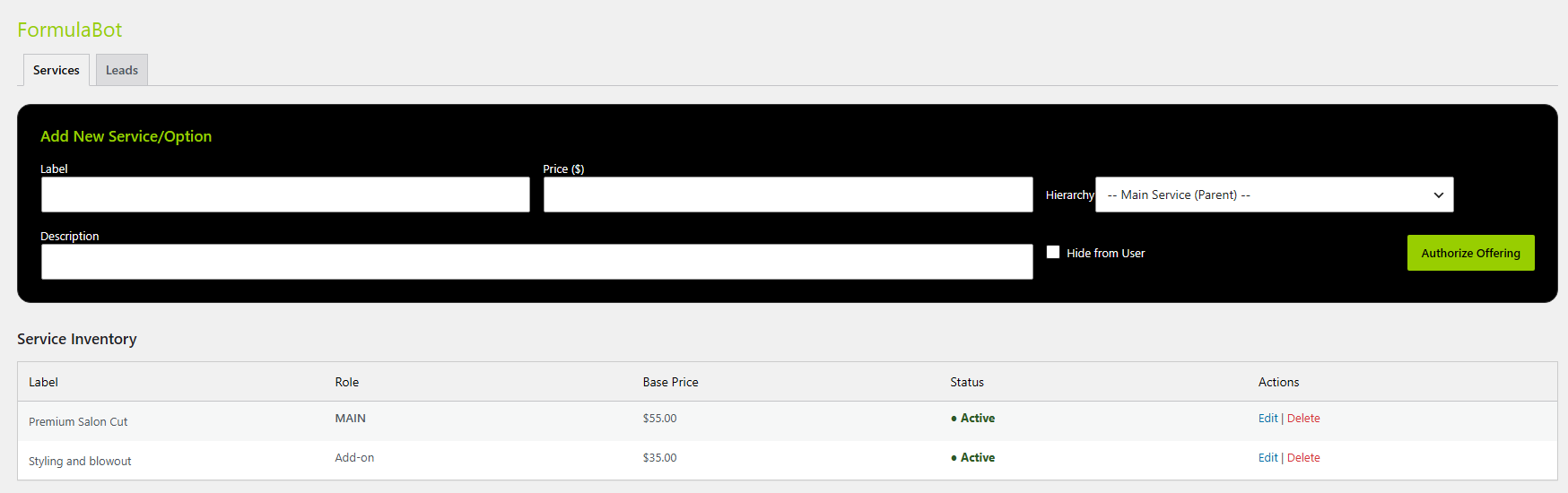
- Fill in Label and Price. Example: Haircut, 45.
- Set Hierarchy to Main Service (Parent).
- Add a Description (optional).
- Leave Hide from User unchecked so visitors can see it.
- Click Authorize Offering.
Add add-ons to a service
You add add-ons on the same PowerTools Suite → FormulaBot → Services screen shown above.
- Fill in Label and Price for the add-on. Example: Deep conditioning, 20.
- Set Hierarchy to Add-on for the main service it belongs to.
- Click Authorize Offering.
- Repeat for each add-on.
Edit, hide, or delete a service
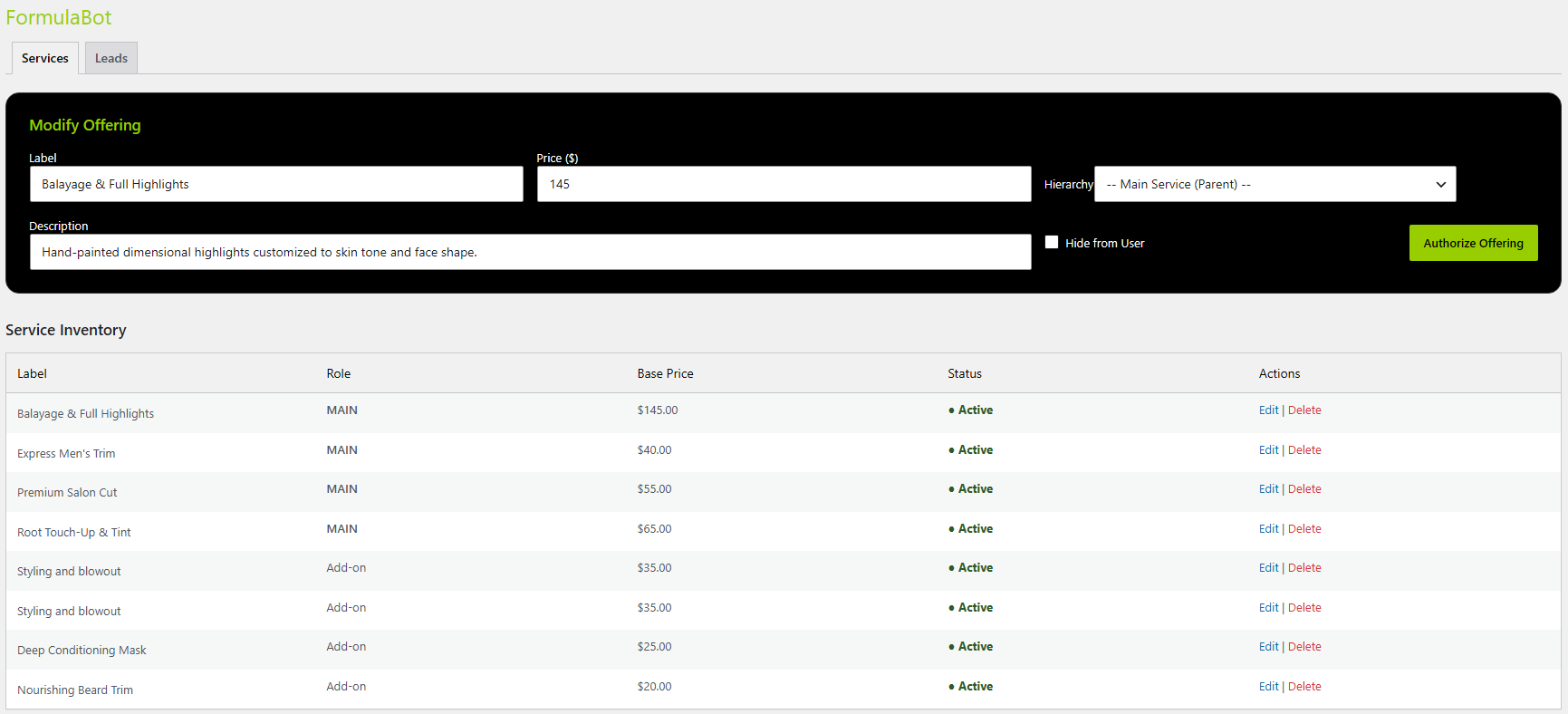
- Edit: click the service, change the fields, and save.
- Hide: check Hide from User. The service stays in admin but doesn't appear on the front end.
- Delete: removes the service from the catalog. Leads you already received stay in Leads.
What visitors see
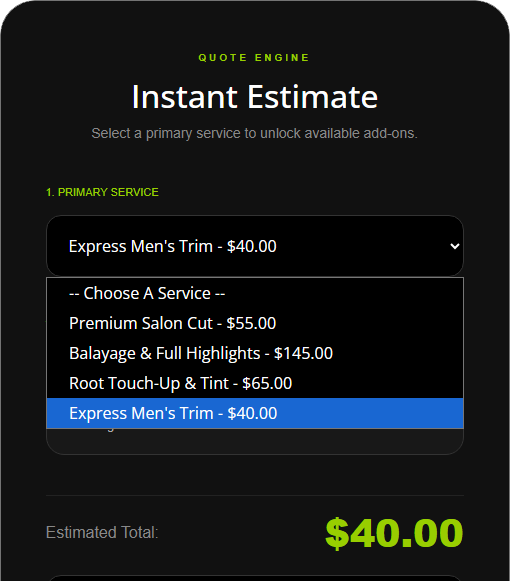
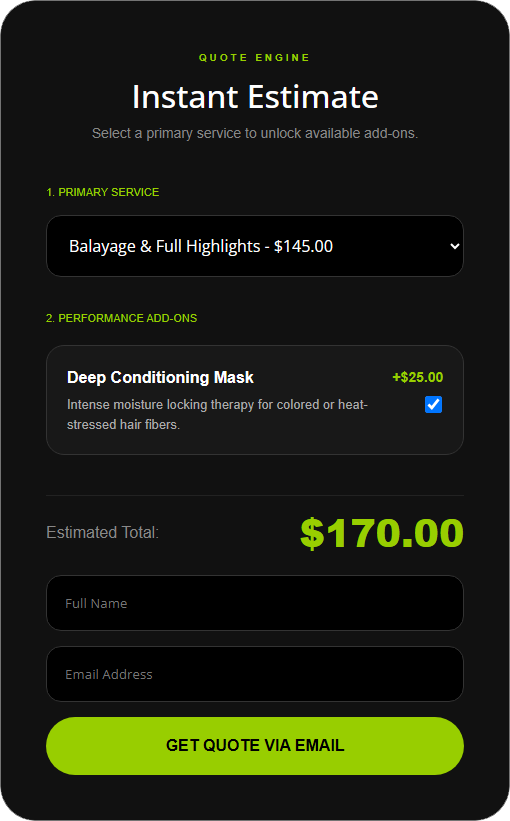
These show how your services and add-ons look on the quote form on the front end. They are not steps.
Tips & things to know
- To add many services or leads at once, use PowerTools Suite → PowerPort and choose FormulaBot Services or FormulaBot Leads.
What it does not do
- It does not calculate tax.
- It does not use shortcodes, and it does not work with Divi 4.