SpotEdit: Set Up Editable Spots
Applies to: PowerTools Suite & Agency Admin Deck
SpotEdit lets your staff change specific text, links, and images on the live Divi 5 page without ever opening the Visual Builder. You choose which modules ("spots") they can change, and whether each change needs approval first.
Who does what
| Role | What they can do |
|---|---|
| Administrator | Keeps the Visual Builder. Marks spots, edits any spot, and publishes or discards staff changes. |
| SpotEdit Manager | Edits spots on the live page and approves or discards changes on the Staff desk. No Visual Builder. |
| SpotEdit Staff | Edits marked spots on the live page. No Visual Builder. |
Before you start
- The page must be built with Divi 5.
- SpotEdit works on Text, Heading, Blurb, Call to Action, Image, and Button modules.
- Each module you want to mark needs a unique Admin Label on that layout, such as "Tuesday special" or "Soup of the day." You most likely name your modules already as part of your build. SpotEdit skips modules with no label or a duplicate label.
Step-by-step
Mark the spots staff can edit
- Open SpotEdit. In WordPress admin, go to PowerTools Suite → SpotEdit.
- Choose the layout. Enter the page or layout ID, or pick it from Recent layouts.
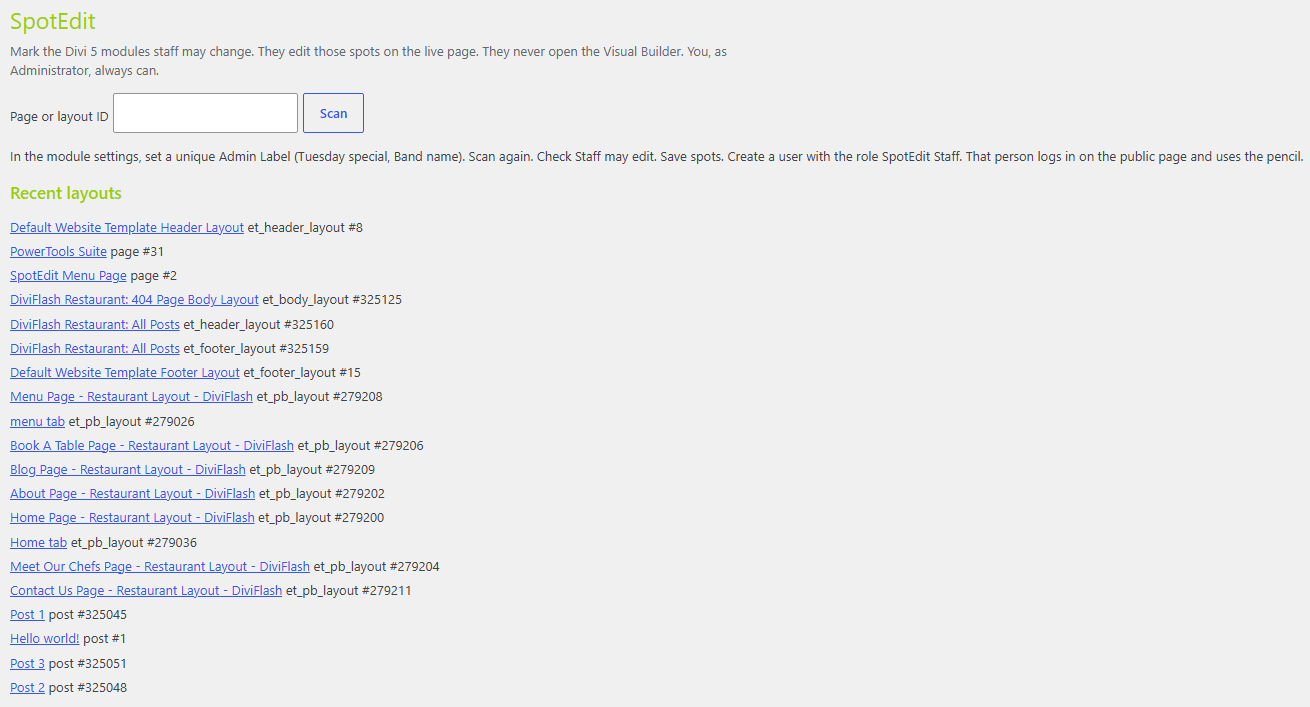
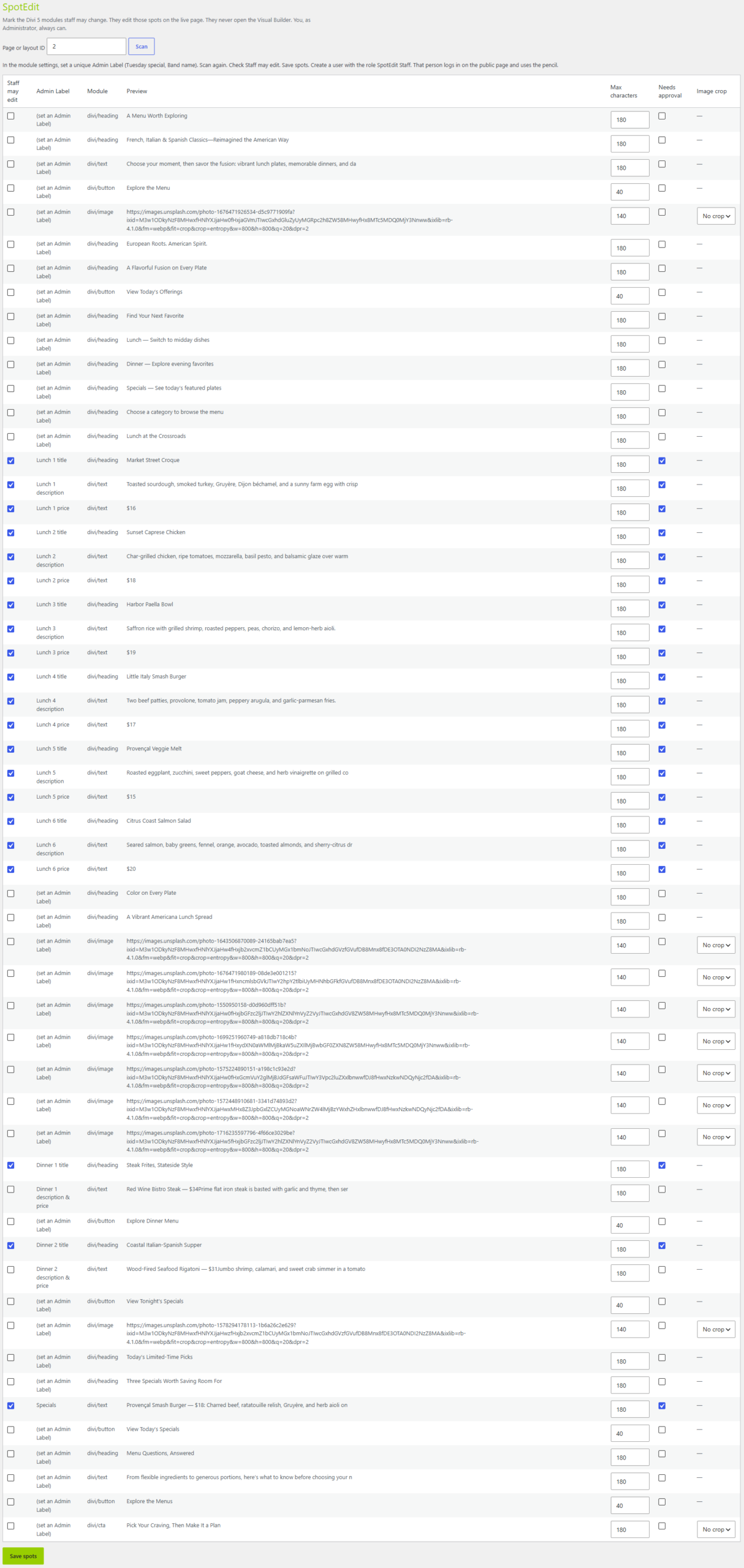
- Click Scan. SpotEdit lists the supported modules it found, by Admin Label.
- Check Staff may edit on each module staff should be able to change.
- Set a character limit for text spots so a long entry can't break the design.
- Choose a crop ratio for image spots, or leave it at No crop.
- Choose Needs approval for each spot (see below).
- Click Save spots.
Careful with Loops: if a module is inside a Divi 5 Loop, a staff edit changes that module on every card. Leave Staff may edit off for looped modules unless that's what you want.
Choose which spots need approval
Approval is set per spot, not per user.
- Needs approval off: the staff edit goes live as soon as they click Save.
- Needs approval on: the live page stays the same until a SpotEdit Manager or Administrator publishes the change from the Staff desk.
Tips & things to know
- The pencil appears only for logged-in users who are allowed to edit. Visitors never see it.
- Images can be JPEG, PNG, GIF, or WebP. A crop ratio center-crops the upload to that shape.
- If you rename a module's Admin Label in Divi, scan the layout again.
- The pencil, the edit form, and the Staff desk use your Divi global accent color through our SafeColor Engine, and update right away when your globals change.
What it does not do
- It does not change fonts, colors, spacing, borders, or presets. It writes only the words, the link, and the image.
- It does not edit classic editor content or Divi 5 layouts.
- It does not give Staff or Managers access to the Visual Builder.
- It does not work on modules other than Text, Heading, Blurb, Call to Action, Image, and Button.