Pro: Broadcast Email to Your Class
Applies to: Pro
Pro: Broadcast Email to Your Class
Voltora Academy Pro lets a teacher send a single announcement email to every student enrolled in a course. It is the fastest way to share a deadline, a schedule change, or encouragement with your whole class at once.
This article walks through composing and sending a class-wide broadcast from the course screen.
Before you start
- You are logged in as a Teacher (or Admin) on a Voltora Academy Pro site.
- The course has at least one enrolled student.
Steps — send a broadcast to your class
- Open the course from the Academy Management Dashboard by clicking the Course name.
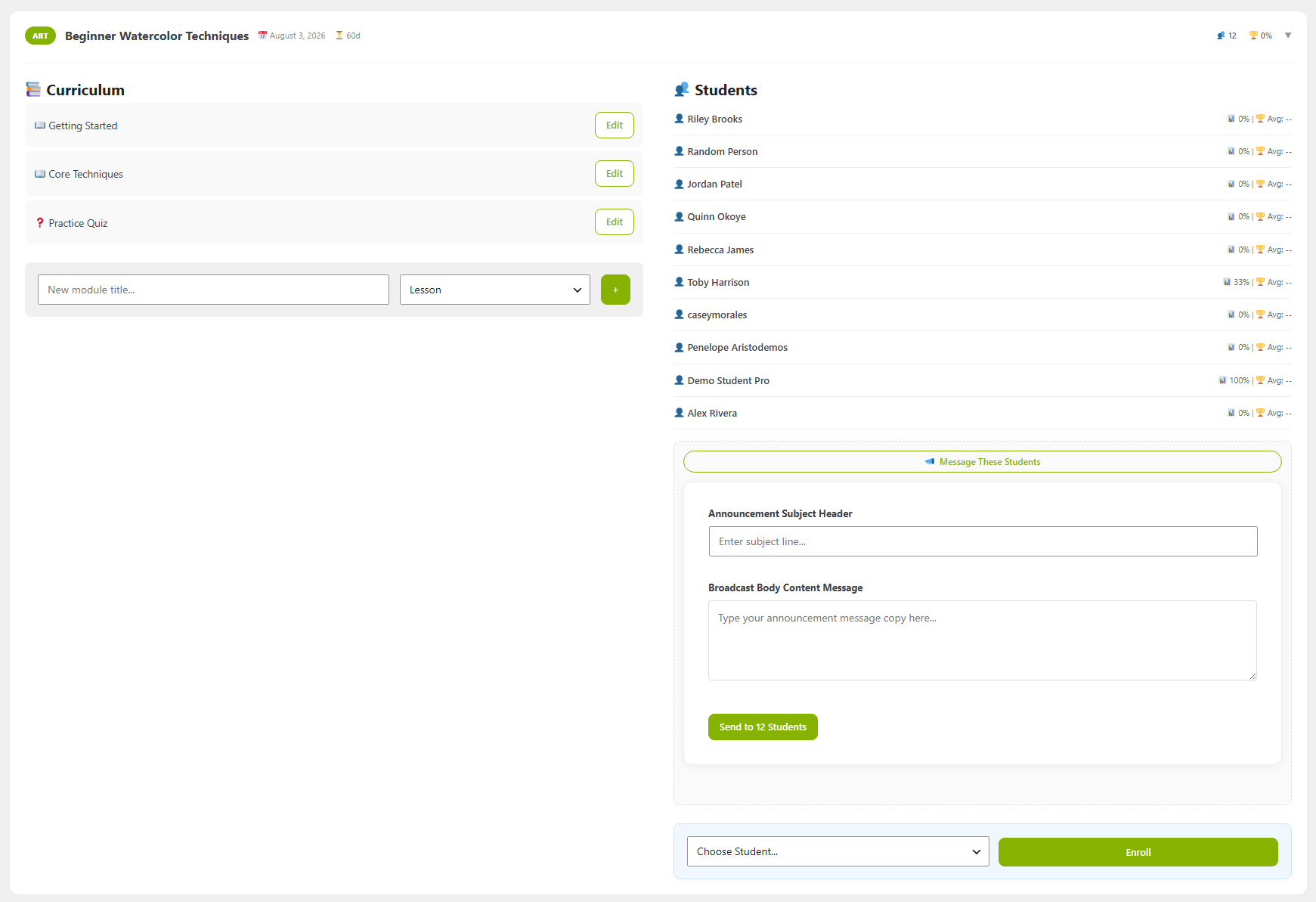
- In the right-hand column, find the Message These Students button and click it to reveal the compose form.
- In the Announcement Subject Header field, type your subject line (placeholder: Enter subject line...).
- In the Broadcast Body Content Message text area, type your announcement (placeholder: Type your announcement message copy here...).
- Click the Send to [N] Students button — the count matches the number of enrolled students (for example, Send to 6 Students).
Tips & things to know
- The recipient list is the course roster shown above the form — the broadcast goes to all listed students and admin, not a selectable subset in this view.
- The same screen also lets you Enroll additional students via the Choose Student... dropdown.
- Admins can also send an academy-wide broadcast (see Pro: Academy-wide Broadcast Email).
- Class broadcast email is a Pro-only feature.