Pro: Add Course Resources (Links / PDF)
Applies to: Pro
Pro: Add Course Resources (Links / PDF)
Voltora Academy Pro lets you attach extra resources — supplemental links or downloadable PDFs — to a course so students have everything they need in one place.
This article covers adding resources on the course screen.
Before you start
- You are logged in as a Teacher (or Admin) on a Voltora Academy Pro site.
- You have the resource URLs or PDF links you want to share.
Steps — add resources to a course
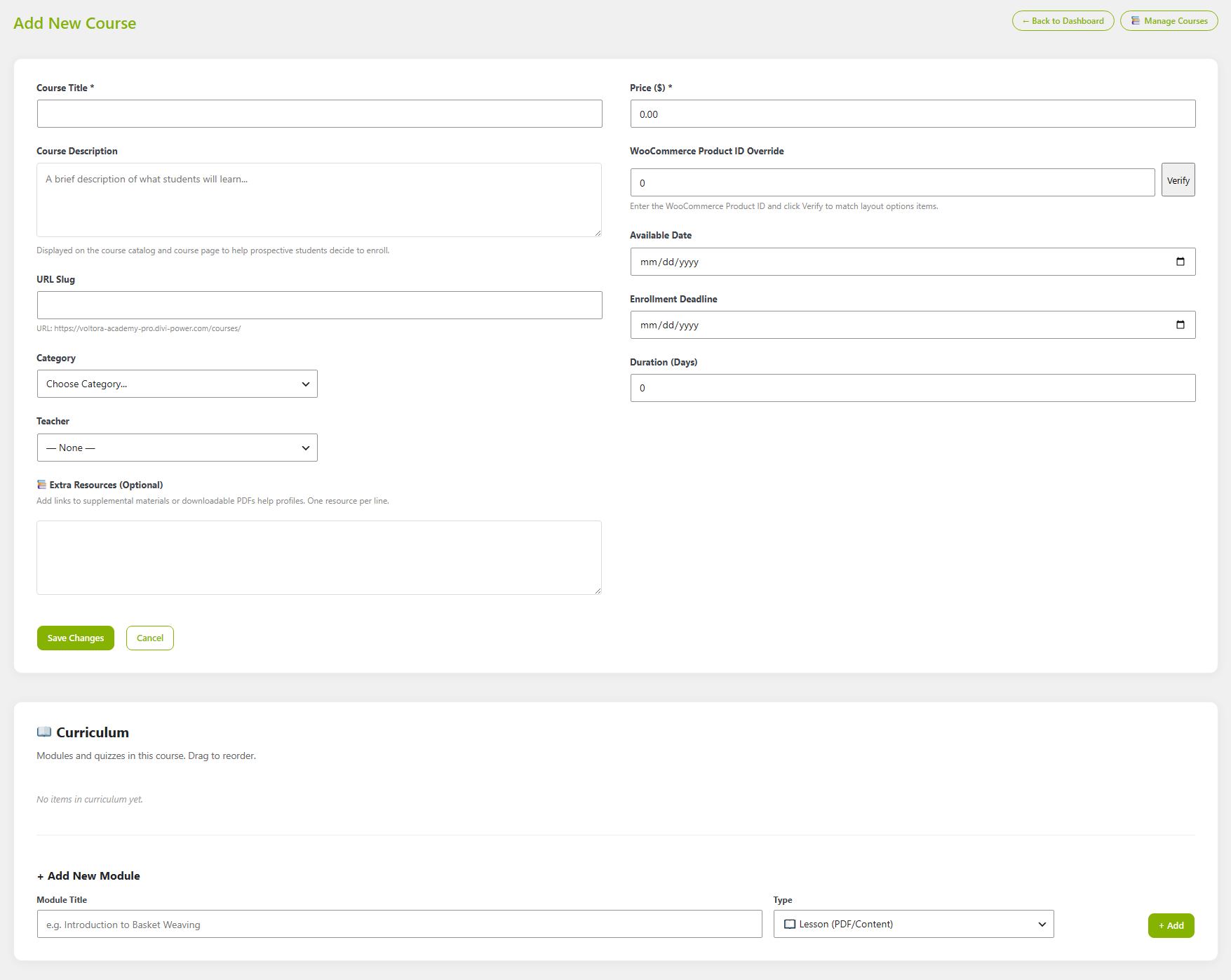
- Open the course in Manage Courses > Edit (or Add New Course).
- In the left column, find the Extra Resources (Optional) section.
- In the text area, add one resource per line — a link to a web page or a downloadable PDF.
- The helper text reads: Add links to supplemental materials or downloadable PDFs. One resource per line.
- Be descriptive and tell the students what it is, then the link on the next line.
- Click Save Changes to store the resources with the course.
Tips & things to know
- Resources are plain text links — one per line. They appear on the course page for enrolled students.
- This is distinct from lesson module: lesson PDFs are uploaded inside the module (see the shared lesson article).
- Adding course resources is a Pro-only feature.