LabelWise: Scan or Type a Barcode (Visitors)
Applies to: PowerTools Suite & Conversion Deck
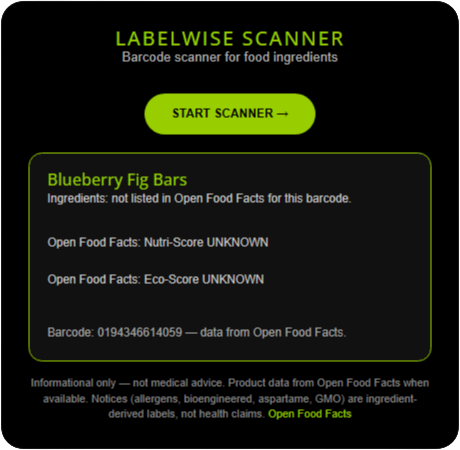
LabelWise adds a barcode scanner to your page. Visitors scan a food barcode with their device's camera, or type the number, and see the product name, ingredients, and notices from the public Open Food Facts database.
Before you start
- Scanning works on a phone, tablet, laptop, or a desktop that has a webcam. Visitors must allow the site to use their camera when the browser asks.
Step-by-step
Scan a barcode
- Open the page over HTTPS.
- Tap Start Scanner.
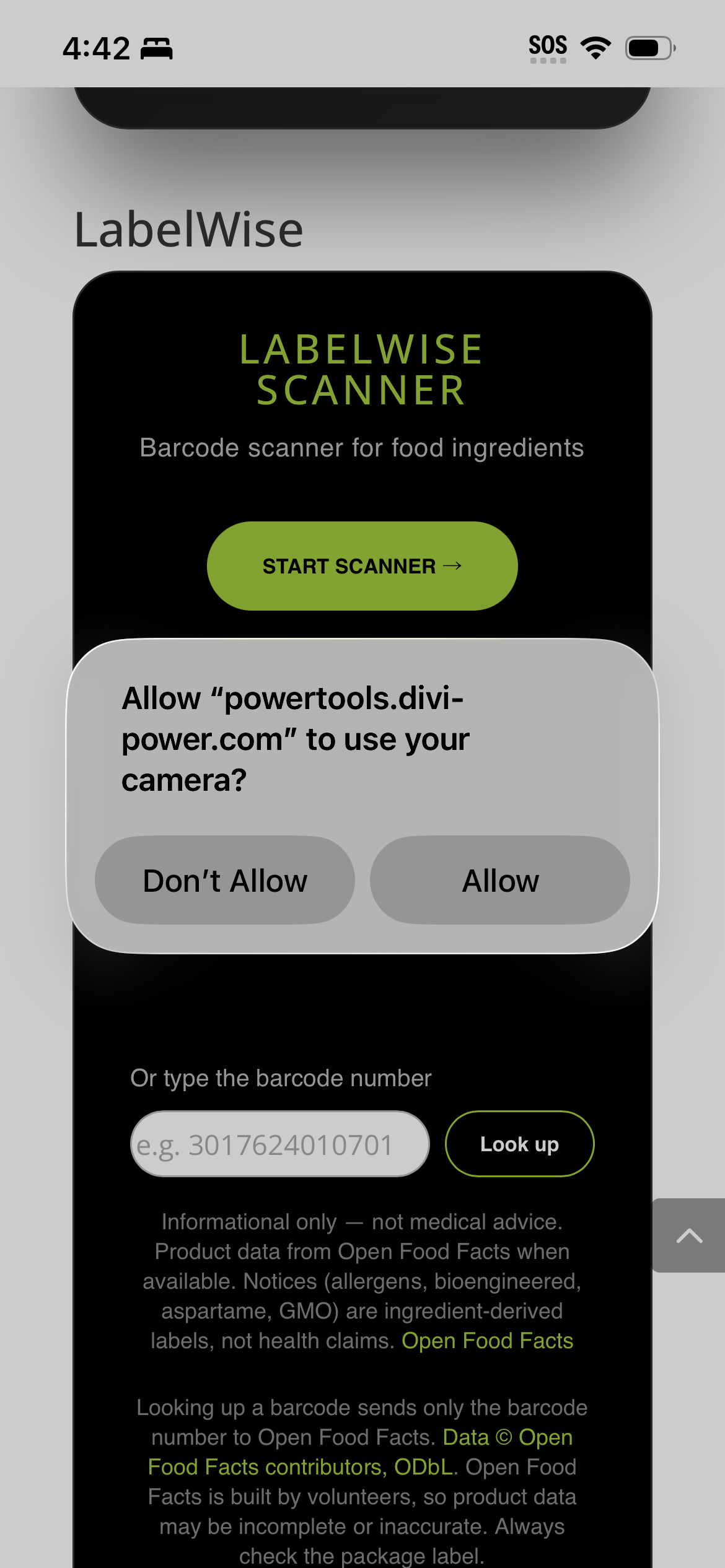
- Allow the camera when the browser asks.
- Aim at the food barcode until it reads.
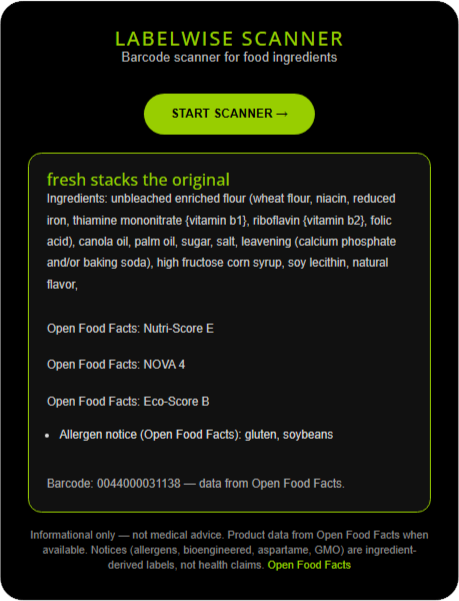
- Read the result: product name, ingredients, and any notices.
Type a barcode instead
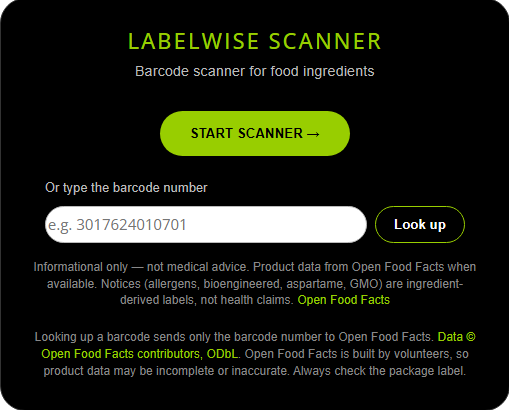
- Type the barcode number in the box under the button.
- Click Look up.
Tips & things to know
- Privacy: the camera doesn't start, and nothing is sent to Open Food Facts, until the visitor taps Start Scanner or Look up. Lookups run on your server, and only the barcode number goes to Open Food Facts.
- If Open Food Facts is busy or down, visitors see a friendly try-again message.
What it does not do
- It is for information only. It is not medical advice or a health certification.
- Products missing from Open Food Facts won't return a full result.