LoopLogic: Show or Hide a Module on Each Loop Card
Applies to: PowerTools Suite & Agency Admin Deck
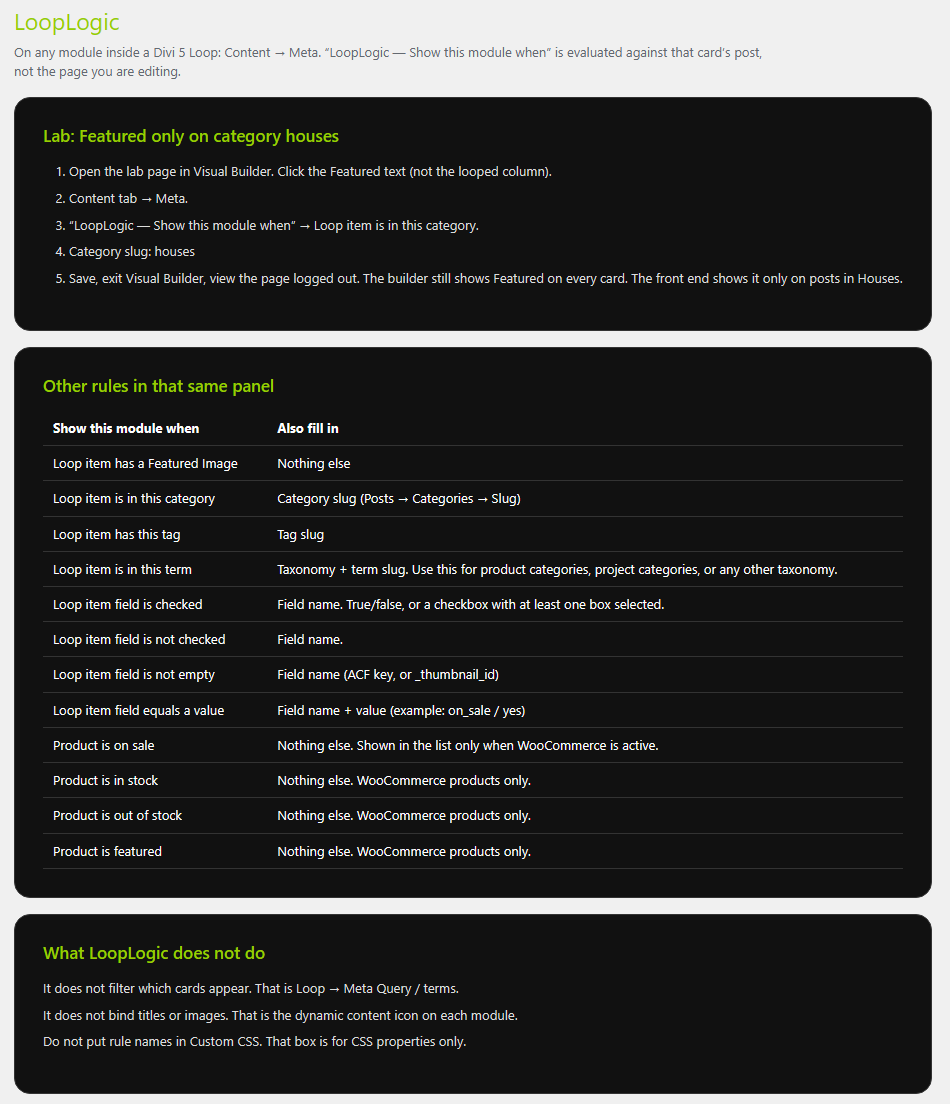
LoopLogic shows or hides a module on each card in a Divi 5 Loop, based on that card's post, product, or other item. Use it for a Sale badge, a Featured label, an out-of-stock note, or a line that should only appear when a field has a value.
Why you need it
Divi's own display conditions usually look at the page, so every card in a loop gets the same answer. LoopLogic asks the question of the item on each card instead.
Before you start
- You need a Divi 5 Loop element: a section, row, column, or group with Loop turned on, built from individual modules.
- LoopLogic does not work inside the Blog, Portfolio, Filterable Portfolio, Fullwidth Portfolio, Post Slider, Fullwidth Post Slider, or WooCommerce Products modules. Those modules build their cards in their own code.
- If your rule uses a category, tag, or field, have the slug or field name ready.
Step-by-step
Set a rule
- Edit the loop layout in the Visual Builder.
- Click the module that should sometimes hide. Click the module itself, not the looped column.
- Open Content → Meta.
- Open "LoopLogic — Show this module when."
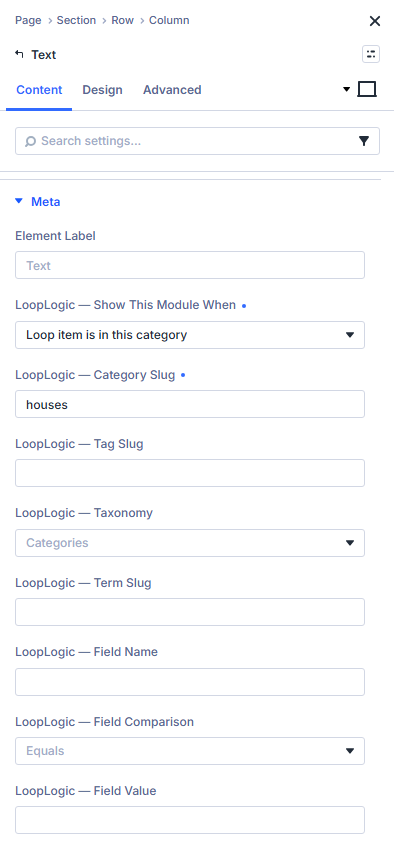
- Pick one rule and fill in only what that rule asks for.
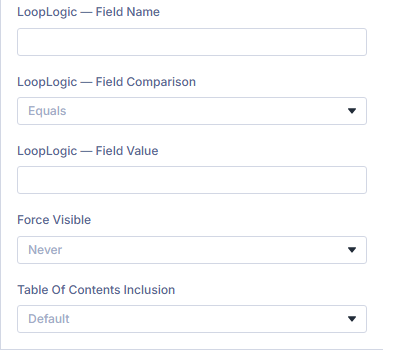
- Save, leave the builder, and view the page while logged out.
The Visual Builder still shows the module on every card. The rule runs on the front of the site.
Find a category slug
- Go to Posts → Categories.
- Read the Slug column for the category you want (for example
specials).
Tips & things to know
- The admin screen at PowerTools Suite → LoopLogic only confirms that the Visual Builder script is present. You set rules on each module.
- If Content → Meta doesn't show the LoopLogic option, the script file is missing. It belongs at
includes/assets/js/dp-pts-ll-visual-builder.jsinside the plugin. Reinstall the plugin or contact us. - Try the LoopLogic Lab page on our demo site to see rules in action.
- For every rule and what it needs, see LoopLogic: Rule Reference.
What it does not do
- It does not choose which cards appear. That stays in the Loop query.
- It does not fill in titles or images. That stays on the dynamic content icon.
- It does not add rules anywhere except the LoopLogic option on each module.
- It does not work inside Blog, Portfolio, Post Slider, WooCommerce Products, or similar modules.
- It does not hide modules in the Visual Builder preview.